

Automation changes radionics work in a very practical way. Instead of depending on memory, repeatedly watching the clock, or manually opening the next file in a long operation, you can prepare the work in advance and let Fire Toolz manage its timing. That does not remove the operator from the practice. It moves the operator’s attention to the part that matters most: defining the intention, choosing the correct template, checking the beneficiary, setting a responsible duration, and verifying that the sequence completed as planned.
Quantum Radionics Fire Toolz provides three different approaches to automated operation: the Automatic Clock, Daily scheduling, and Artillery mode. They are not three names for the same feature. Each solves a different timing problem. The Automatic Clock runs one open template during a specific calendar window. Daily scheduling coordinates several saved templates at assigned dates or recurring times. Artillery executes a queue of saved templates consecutively, giving each file its own duration before moving to the next.
The most useful automation begins long before you press Start. It begins with a clean template, stable files, a precise target, and a schedule whose logic you can explain. This guide will help you build that discipline. You will learn how to choose the right scheduling mode, prepare files that remain dependable, design sequences that have a beginning and an end, protect long sessions from ordinary computer interruptions, and keep records that distinguish what you intended from what the software actually completed.
1. Automation Is Operational Discipline, Not an Automatic Result

Fire Toolz automation is best understood as an execution system. It can start a prepared operation at the time you choose, stop it at the time you choose, run several saved templates during different windows, or move through an ordered sequence. These are concrete software functions. They reduce repetitive hands-on work and help you preserve an operating plan over hours or days.
Automation does not decide what your intention should be. It does not verify that a template is appropriate for the beneficiary. It cannot correct an ambiguous decree, restore a missing image, repair a broken audio path, or recognize that two operations pull in contradictory directions. If you place confusion into the schedule, Fire Toolz can execute that confusion with perfect punctuality. The quality of the operation still comes from the quality of its preparation.
I recommend treating every automated session as a compact protocol with five parts: purpose, beneficiary, configuration, timing, and completion. Purpose states what the operation is meant to do. The beneficiary identifies where it is directed. Configuration brings together the relevant filters, decrees, values, sounds, and transfer cards. Timing defines when and for how long it runs. Completion establishes how the operation ends and how you will confirm that it ended correctly.
This structure protects you from a common mistake: using duration as a substitute for clarity. A vague template does not become precise because it runs longer. A poorly designed sequence does not become coherent because Repeat is enabled. More simultaneous instances do not automatically create a better practice. Automation should give a clear operation an orderly container, not compensate for an operation that was never clearly designed.
The metaphysical dimension remains the reason many practitioners use Fire Toolz. Within this practice, timing, repetition, transfer cards, structural links, radionic filters, and focused intention form an operational whole. Yet responsible practice also distinguishes that framework from what the software visibly proves. Fire Toolz can prove that it loaded a particular file, displayed its positions, played associated media, followed a schedule, and moved through a queue. It cannot prove that an external event occurred because the program ran.
That distinction does not weaken the work. It strengthens your discipline. You can conduct the operation seriously while keeping the record factual: which beneficiary was used, which template version ran, which mode controlled it, when it began, when it stopped, and whether an interruption occurred. When your records are clean, you can refine your practice without inventing explanations for missing information.
Automation also creates freedom. Once you have verified the configuration and started the correct scheduler, you do not need to stare at the screen. You can continue with ordinary responsibilities, take the practical actions related to your intention, and return for planned checks. A manifestation operation may accompany a business task, but it does not replace sending the proposal. A concentration template may support your working period, but it does not write the report. The strongest automated practice joins focused radionic work with deliberate action in the world.
2. Choose the Right Mode: Automatic Clock, Daily, or Artillery
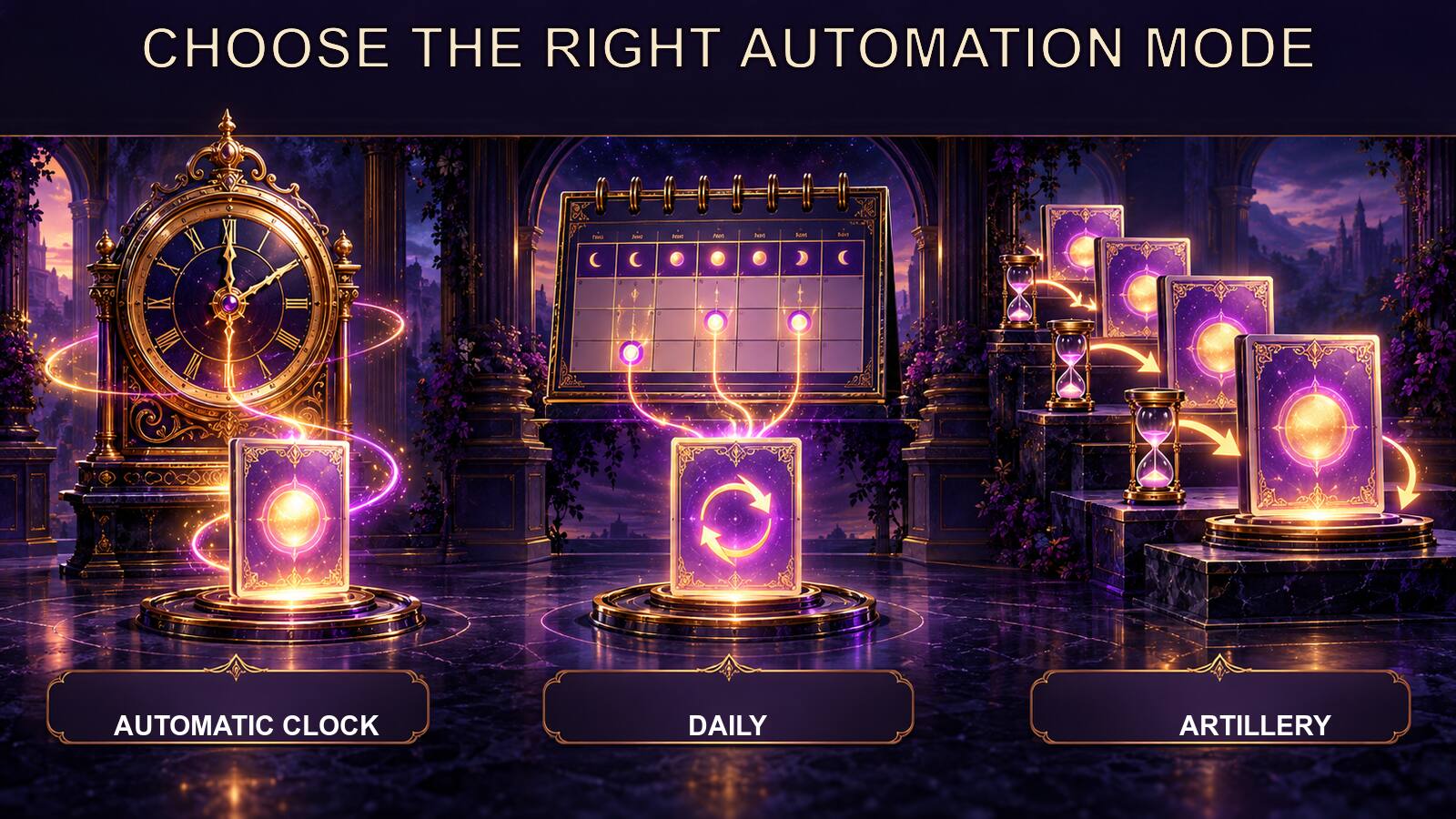
The three automation modes answer three different questions.
Automatic Clock asks: When should this one open template begin and end?
Daily scheduling asks: Which saved template should run during each assigned date or recurring time window?
Artillery asks: Which saved template should run next, and how many minutes should each stage receive?
Choose the mode from the structure of the operation, not from which screen looks more advanced. If you have one personalized template and want it to run during a defined interval, the Automatic Clock is the simplest fit. If you want different templates to support different parts of a day or week, Daily scheduling is the natural choice. If one operation consists of several distinct stages that must occur in order, use Artillery.
Imagine three practical examples. First, you have prepared one template for calm concentration during a scheduled study period. You want the open template to start at 7:00 p.m. and stop at 9:00 p.m. That is an Automatic Clock task. Second, you maintain separate saved templates for morning focus, afternoon communication, and evening relaxation. You want them assigned to different non-overlapping windows. That belongs in Daily scheduling. Third, you have a four-stage operation in which preparation must be followed by focused transmission, stabilization, and closure. That is an Artillery sequence.
Do not use Artillery merely because it can contain many files. A queue is valuable only when order carries meaning. If the templates are independent and should run on different days, a calendar-based mode will be clearer. Conversely, do not build a chain of separate calendar events when a continuous sequence is the real design. That creates more opportunities for gaps, overlaps, and incorrect dates.
The installed version matters. Fire Toolz editions have supported multiple entries in Daily mode and a larger queue in Artillery, but interface limits can vary by edition. Read what your own screen allows instead of treating an old number as eternal. The essential distinction remains stable: calendar window, scheduled collection, or sequential queue.
Mode selection also affects supervision. One Automatic Clock window is easy to inspect: confirm the open template, start time, and stop time. A Daily schedule requires you to review every active row, date, path, and possible overlap. An Artillery sequence requires an order audit, a duration audit, and a decision about Repeat. The more complex the scheduler, the more valuable a written plan becomes.
Before committing, summarize your choice in one sentence. For example: “Use Automatic Clock because one open template must run once from 8:00 p.m. to midnight.” Or: “Use Artillery because four personalized files must execute consecutively and stop after the final stage.” If you cannot explain the choice simply, the operation may not yet be ready to automate.
3. Prepare and Save the Template Before You Schedule It
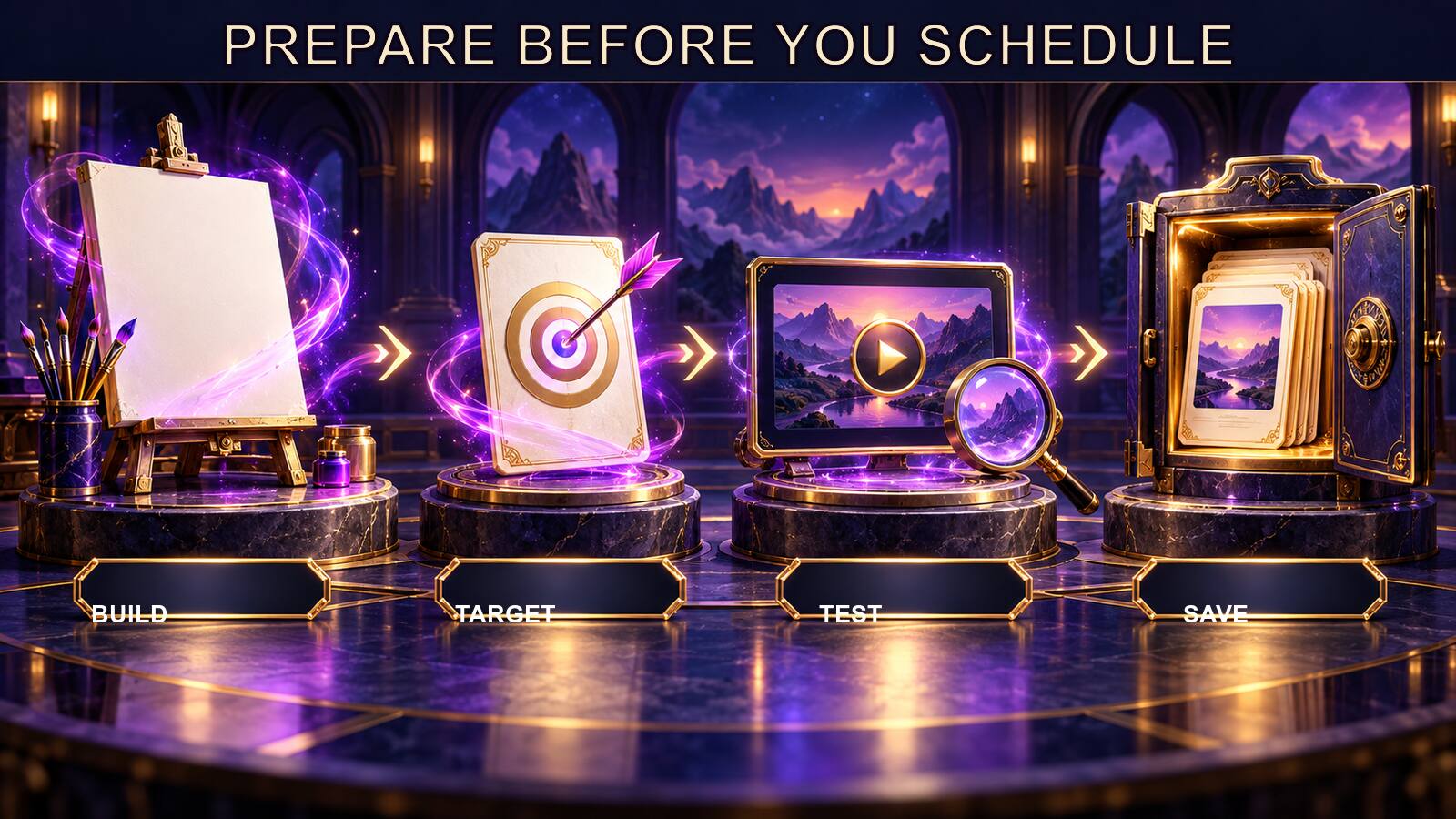
Never treat the scheduler as the place where the template is designed. Finish the configuration first. Automation should receive a saved, tested file whose purpose and beneficiary are already clear.
Begin with the beneficiary or target reference. Confirm that the photograph, name, project, place, object, or authorized subject is the one intended for this operation. When working with another person, obtain consent before using identifying material. Do not aim an automated session at someone in order to force affection, agreement, spending, obedience, silence, or another personal decision. A technically correct schedule does not make a coercive intention responsible.
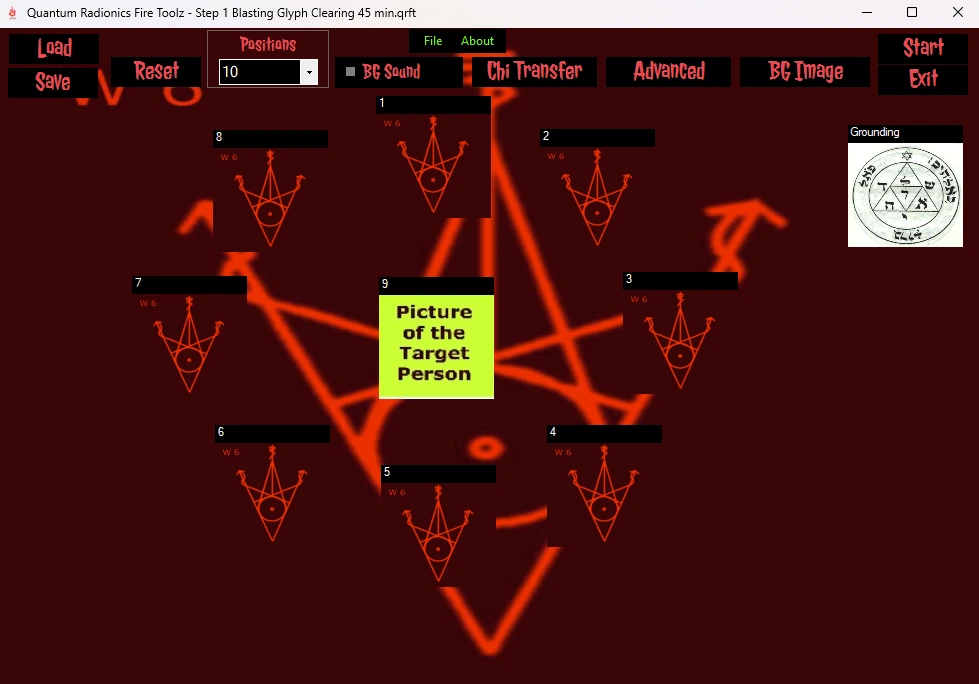
Review every position. Each filter should have one intelligible role. The position name should tell you what it contributes. Its decree should be specific enough to understand later, especially if you return to the file after several weeks. If radionic values are part of the template, confirm that they belong to that position rather than being remnants from another operation. If visible text or values are enabled, verify how they appear during the running state.
Check the transfer-card configuration. The card or cards selected for the operation must be enabled and compatible with the number of positions. The sequence should move through the positions in the intended numerical order. Adding more cards is not automatically an improvement; it can increase visual activity and system load. Use the arrangement you can explain and maintain.
If the template includes a grounding or closing position, ensure it is actually last. If the beneficiary should be the last position because no grounding position is used, verify that order instead. Position numbering is not decoration. It defines the route followed during the operation.
Audio deserves a separate check. A background track applies to the complete template, while an audio file assigned to one position can affect how long the transfer card remains there. Confirm that every file still exists and plays outside Fire Toolz. Keep audio in a stable project folder. A template may remember a path rather than contain the source media itself; moving or renaming the audio later can leave the schedule pointing to nothing.
Open the Notes section before scheduling. Prepared templates may contain instructions, recommended order, personalization reminders, or version-specific timing. Your own notes should identify the purpose, beneficiary convention, date prepared, template version, media dependencies, and any sequence relationship. Notes are part of operational memory. They keep a saved file from becoming a mysterious collection of images and settings.
Save a clean master separately from the personalized working copy. Give the working file a name that identifies the purpose and version without exposing unnecessary private information. A useful pattern is purpose-subject-code-version-date, using a private subject code rather than a full personal name when privacy matters. Keep all images and audio in the same stable project structure.
Finally, perform a short hands-on test. Confirm that the file loads, positions display correctly, transfer cards move, audio behaves as expected, and Reset is not needed. Stop the test, save again if you corrected anything, and only then place that exact file into a scheduler. Five minutes of preparation can prevent an overnight run of the wrong version.
4. Use the Automatic Clock for One Precise Operating Window

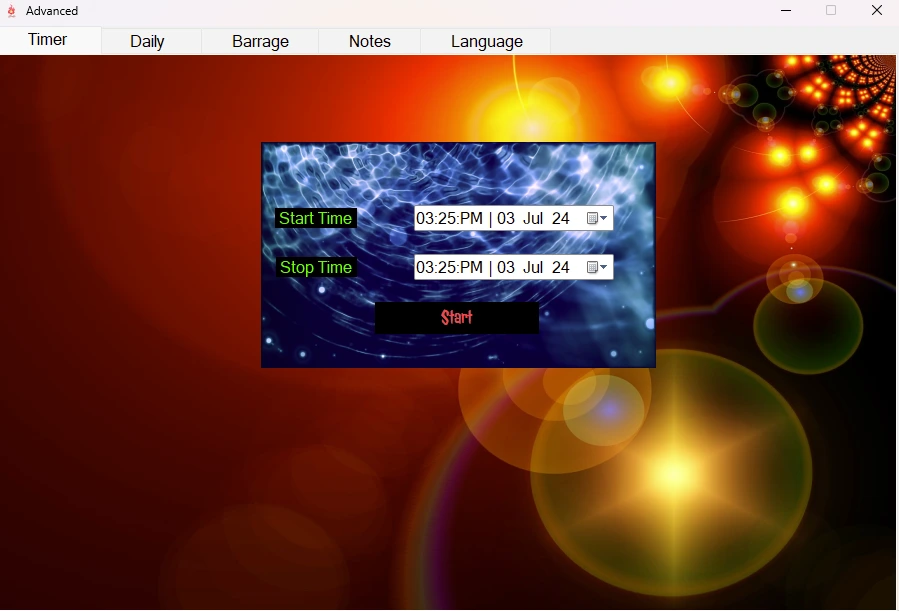
The Automatic Clock is the cleanest automation mode when one open template must run during one defined interval. It is ideal for a session tied to a planned activity, a selected calendar window, or a future start that you do not want to trigger manually.
Load the personalized template into the main Fire Toolz workspace and inspect it before opening the scheduler. The Automatic Clock controls the operation that is currently open. That means the visible template at setup time matters. Do not assume the clock will search your folders or remember which file you intended if you later replace the open workspace with something else.
Set the start and stop using the computer’s local date and time. Confirm the current system clock first. An incorrect time zone, manually altered clock, daylight-saving transition, or stale date can shift the operation. The scheduler is literal: it follows the operating system’s time, not the time you had in mind.
The stop time must follow the start time. Give the template enough time for the intended practice, but do not choose a duration simply because a larger number feels more powerful. Source templates may include their own instructions in Notes. Custom templates need a reasoned duration based on the structure of the operation and your established method. If the subject involves health, finance, law, safety, or another high-stakes matter, the automated practice remains complementary and does not replace qualified help or concrete action.
After you start the Automatic Clock, look for the waiting or active state that confirms the scheduler accepted the configuration. Minimize Fire Toolz if you wish, but do not close it. Do not sign out of Windows, shut down the computer, or allow the machine to sleep. Screen-off behavior may be harmless, but system sleep suspends the program and breaks continuity.
Use the Automatic Clock when simplicity is an advantage. For example, a practitioner might prepare a template for concentration during a two-hour creative session. The operation begins with the work period and ends when the session ends. The practitioner still opens the design file, turns off distractions, and does the work. Fire Toolz provides the timed radionic structure around that action.
Another example is a date-specific ceremonial window chosen within the practitioner’s tradition. The scheduler can start and stop the prepared template at the selected times. The date may carry metaphysical significance within the practice, but the software itself only proves that it followed the calendar configuration. Keep the distinction precise and let the tradition supply meaning without presenting timing as a guaranteed cause of external results.
When the stop time passes, verify that the operation ended. Record the actual completion rather than assuming the clock succeeded because the settings looked correct earlier. If the computer restarted or Fire Toolz closed, record the interruption honestly. A planned two-hour operation and a completed two-hour operation are not the same event.
5. Use Daily Scheduling to Coordinate a Rhythmic Practice
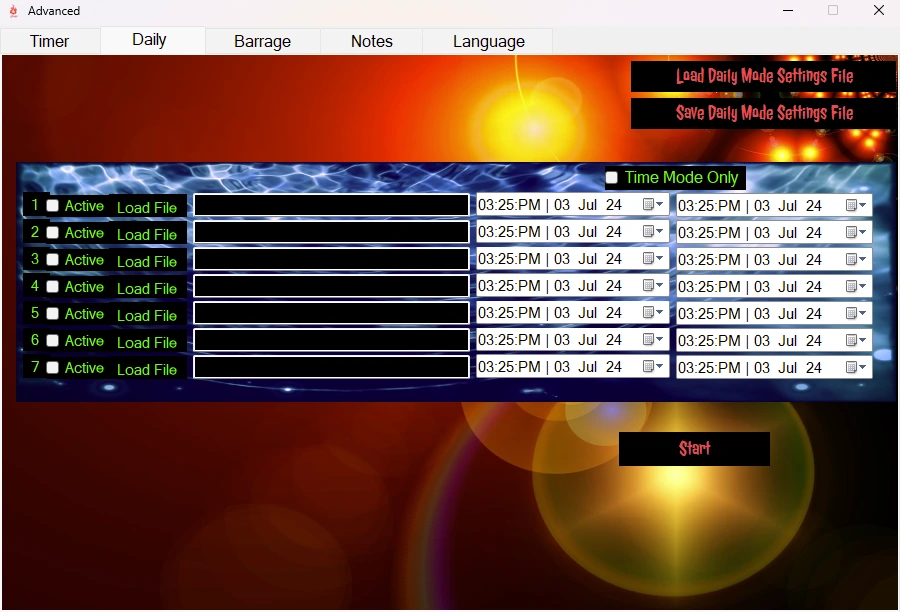
Daily scheduling is designed for several saved templates assigned to different dates or recurring time windows. It is useful when your practice has rhythm: morning preparation, focused work, an afternoon communication period, evening clearing, or another pattern that repeats without requiring one continuous queue.
Each active row points to a saved template file. This is why preparation and file organization matter. The scheduler cannot personalize the template for you. It can only load the file at the specified time. Before adding it, open the template directly, inspect the beneficiary and configuration, save it, and close it without ambiguity.
In date-based Daily mode, assign the beginning and ending calendar values for every active row. Review the year as carefully as the hour. A familiar month and day paired with the wrong year can make a schedule appear correct while it never starts. Verify that every ending occurs after its beginning.
In recurring time-only mode, the active windows return each day. This is powerful precisely because it is persistent. It is also easy to forget. A schedule created for one week can continue into a later period unless you stop or revise it. Use recurring mode only for operations you genuinely intend to repeat, and place a review date in your private log.
Avoid overlaps unless you have deliberately tested the behavior of your installed version. Two rows competing for the same instance can produce an unclear transition. Leave a small margin between the stop of one template and the start of another. That interval provides time for the first operation to end cleanly and for the next file to load.
A good Daily schedule has a comprehensible daily arc. One template might support calm preparation before work. A second might support concentration during a defined production block. A third might support decompression after the workday. These are separate operations with separate purposes, not a pile of simultaneous demands. The ordinary actions remain essential: prepare the workspace, complete the focused task, communicate directly, rest, and maintain healthy boundaries.
Do not use Daily mode to automate attention toward another person throughout the day without their consent. Do not build schedules intended to pressure a client, partner, coworker, judge, buyer, or relative into a decision. Aim operations toward your own clarity, ethical communication, protection, readiness, or authorized beneficiary work. The scheduler increases consistency; responsibility must increase with it.
Save the Daily configuration when the interface supports it, but do not treat a saved scheduler as eternally valid. When loading it again, check every file path, template version, date, time, active row, and recurring-mode setting. A saved configuration is a convenience, not a release from review.
At the end of the first full day, compare the plan with what occurred. Did every row start? Did the correct template appear? Did audio play? Did one window overlap another? Did the computer sleep? Correct technical weaknesses before expanding the schedule. Build reliability with one day before asking the system to manage a week.
6. Use Artillery for a Sequence Whose Order Matters
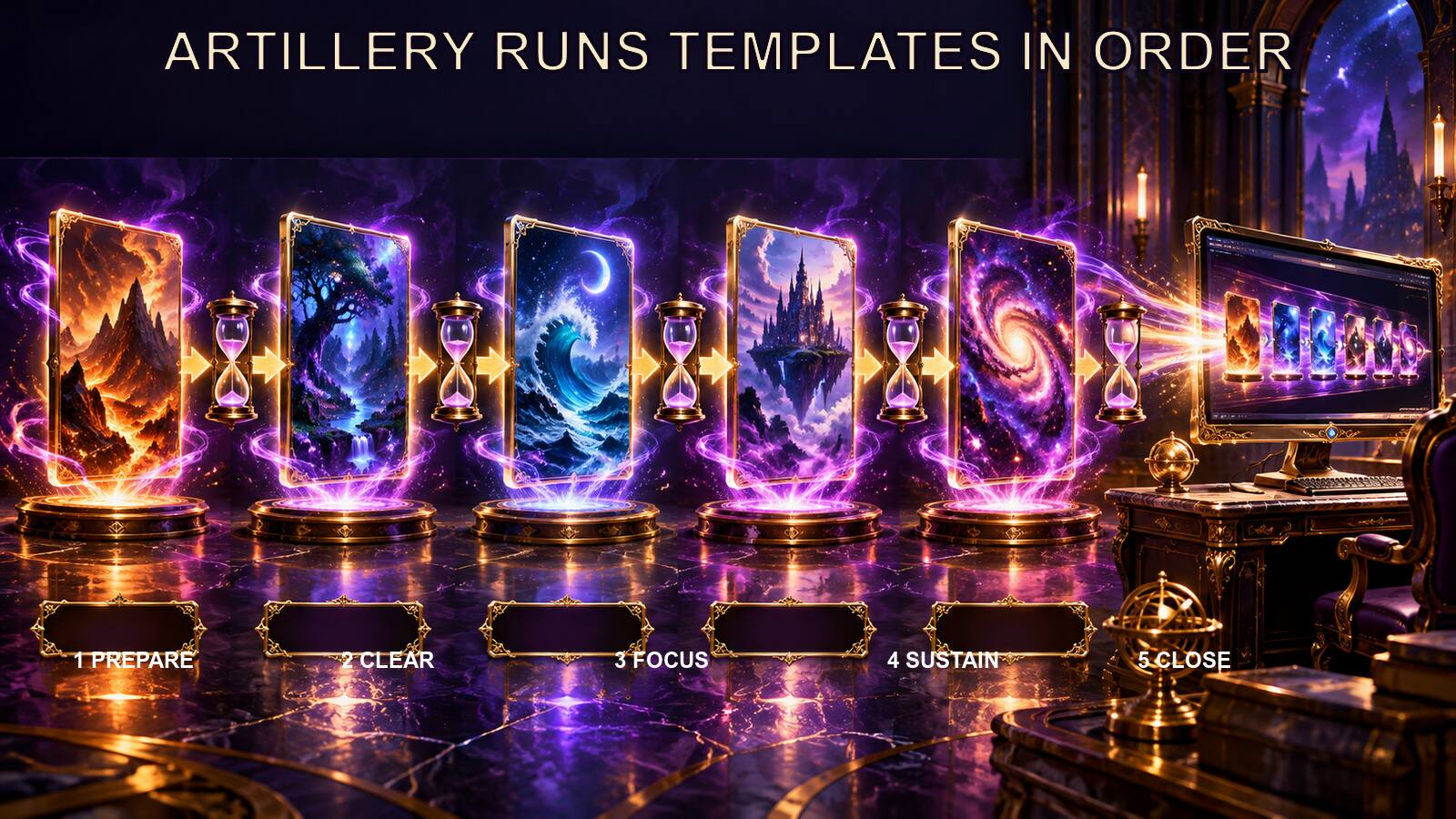
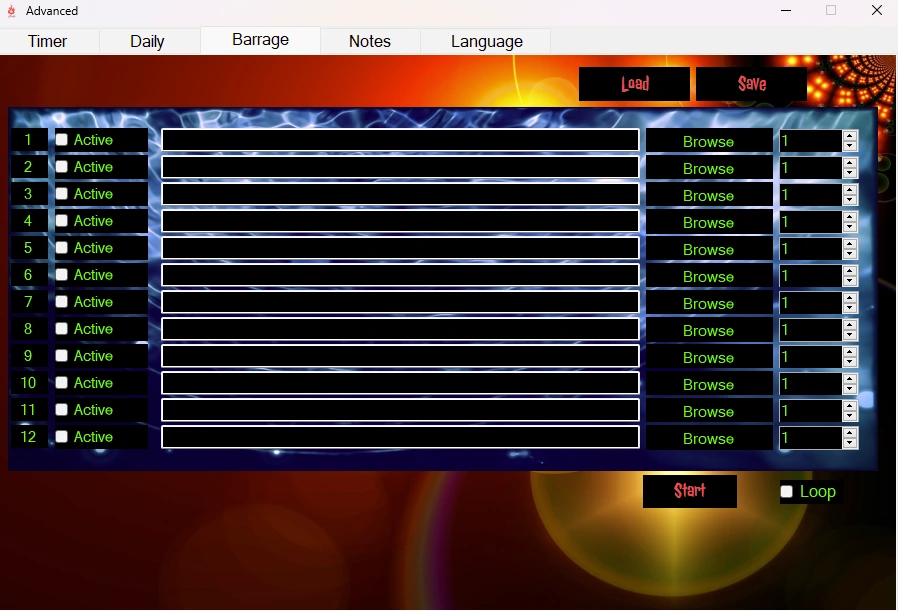
Artillery mode is a queue. It runs the first active template for its assigned number of minutes, stops that stage, loads the next active template, and continues until the sequence ends. The files do not all run at once inside one Artillery queue. Order and duration define the operation.
This makes Artillery the correct choice for a protocol with distinct stages. The six-step energetic cleansing is one well-known example, but the feature is broader than cleansing. A practitioner can design an authorized sequence that moves from preparation to a focused operation, then stabilization and closure. What matters is that each stage has a separate purpose and that the transition from one file to the next is intentional.
Personalize and save every template before adding it to the queue. Load each file into its row and activate only the rows you need. A file placed in an inactive row will not run. An old file left in an active lower row may run unexpectedly after the stage you intended to be final. Review the entire visible list, not just the first entries.
Artillery durations are entered in minutes. Convert hours deliberately. One hour is 60 minutes; two hours are 120 minutes. Do not type 2 when you intend two hours. For longer stages, write the conversion in the plan before entering it. Arithmetic errors are among the most ordinary and preventable causes of an incorrect sequence.
Read the Notes inside every supplied template. If files are marked Step 1, Step 2, and Step 3, preserve that order unless you possess clear instructions for a different method. Do not assume all prepared files are interchangeable because they belong to the same package. A sequence may depend on an opening stage, a main stage, and a closing stage.
The Repeat control changes the meaning of the operation. With Repeat off, Artillery stops after the last active row. With Repeat on, the sequence returns to the first active row and begins another cycle. Never enable Repeat by habit. Ask whether every stage is appropriate to repeat, calculate the total duration of one cycle, decide when the cycling will stop, and document how you will supervise it.
Before a long run, test a copy of the sequence with short durations. This test is not a substitute for the real timing; it verifies file order, loadability, transitions, and the stopping behavior. Confirm that row 2 follows row 1, that the intended final row is truly final, and that Repeat has the correct state. Then restore the planned durations, save the configuration, and perform one last readback.
Artillery is powerful because it turns a method into an executable order. Use that power to preserve structure. Do not create a dramatic chain of unrelated filters merely to fill the queue. A shorter sequence whose logic you understand is better than a long procession of files whose interactions you cannot explain.
7. Design the Sequence as an Arc: Prepare, Work, Stabilize, Close
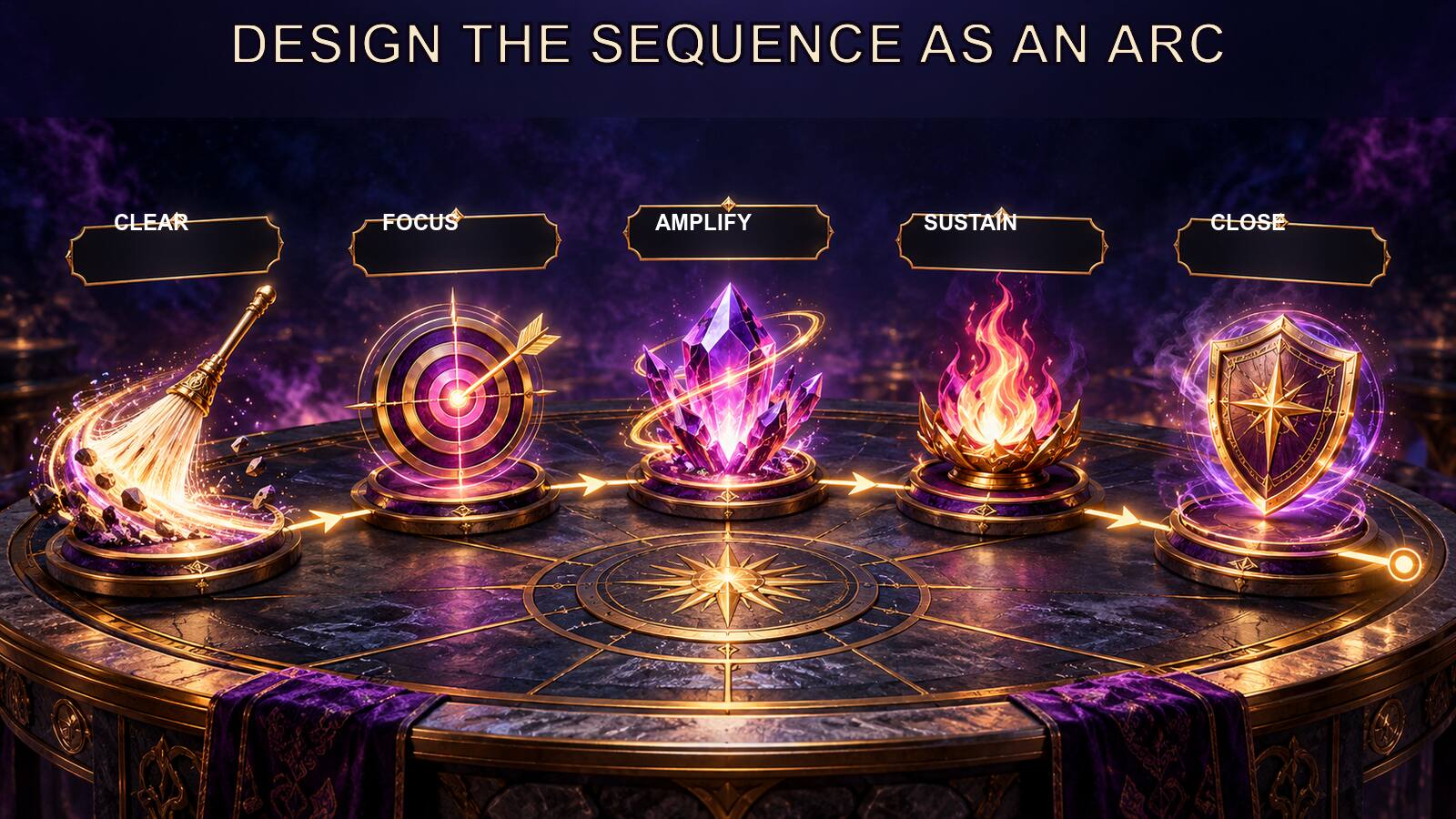
A strong sequence has an arc. Even when the exact stages differ by method, it should be possible to explain why the first file comes first, why the middle stages belong together, and why the last stage completes rather than merely stops the operation.
Begin with preparation. This may involve grounding, clearing distractions, establishing the beneficiary, or defining the operational field. Preparation should not become an endless ritual that prevents the main work from starting. Its role is to create a coherent beginning.
The central stage or stages carry the specific purpose. Each template should contribute a distinct tendency rather than repeat the same idea under different filenames. If three files all claim to provide “success,” decide what actually distinguishes them. Perhaps one addresses clarity, another communication, and another disciplined action. If no difference can be identified, the sequence may be needlessly redundant.
Stabilization changes the direction from active work toward integration. In a cleansing protocol, this might mean balancing after removal. In a manifestation sequence, it might mean coherence, responsible action, or release of obsessive monitoring after the main intention has been established. The exact content must come from the method and the templates you are using; do not invent a universal stage merely because the word sounds complete.
Closure gives the operation an ending. A grounding position inside a template can support closure, but it does not automatically replace a final-stage design when the protocol calls for one. The final file should leave the beneficiary and practitioner oriented toward balance, autonomy, and appropriate real-world action rather than fear or compulsive repetition.
Keep the arc visible in your file names and notes. Prefixing working copies with sequence numbers can reduce mistakes: 01-prepare, 02-focus, 03-stabilize, 04-close. Preserve the original master files separately. If the method already supplies exact names, keep them and add sequence information only to your private copy in a way that does not obscure identity.
Calculate total runtime before you start. Add the minutes for every active row and, if Repeat is enabled, multiply by the intended number of cycles. Write the expected completion time. This simple calculation tells you whether the plan fits the available power, supervision, and calendar window.
Finally, ask whether the sequence respects the beneficiary. A coherent arc does not manipulate someone’s private choices. It does not punish an alleged attacker or turn uncertainty into a diagnosis. It directs the operation toward a defined, authorized purpose and ends with the beneficiary’s own balance and agency intact.
8. Prevent Overlaps, Infinite Repetition, and Conflicting Operations
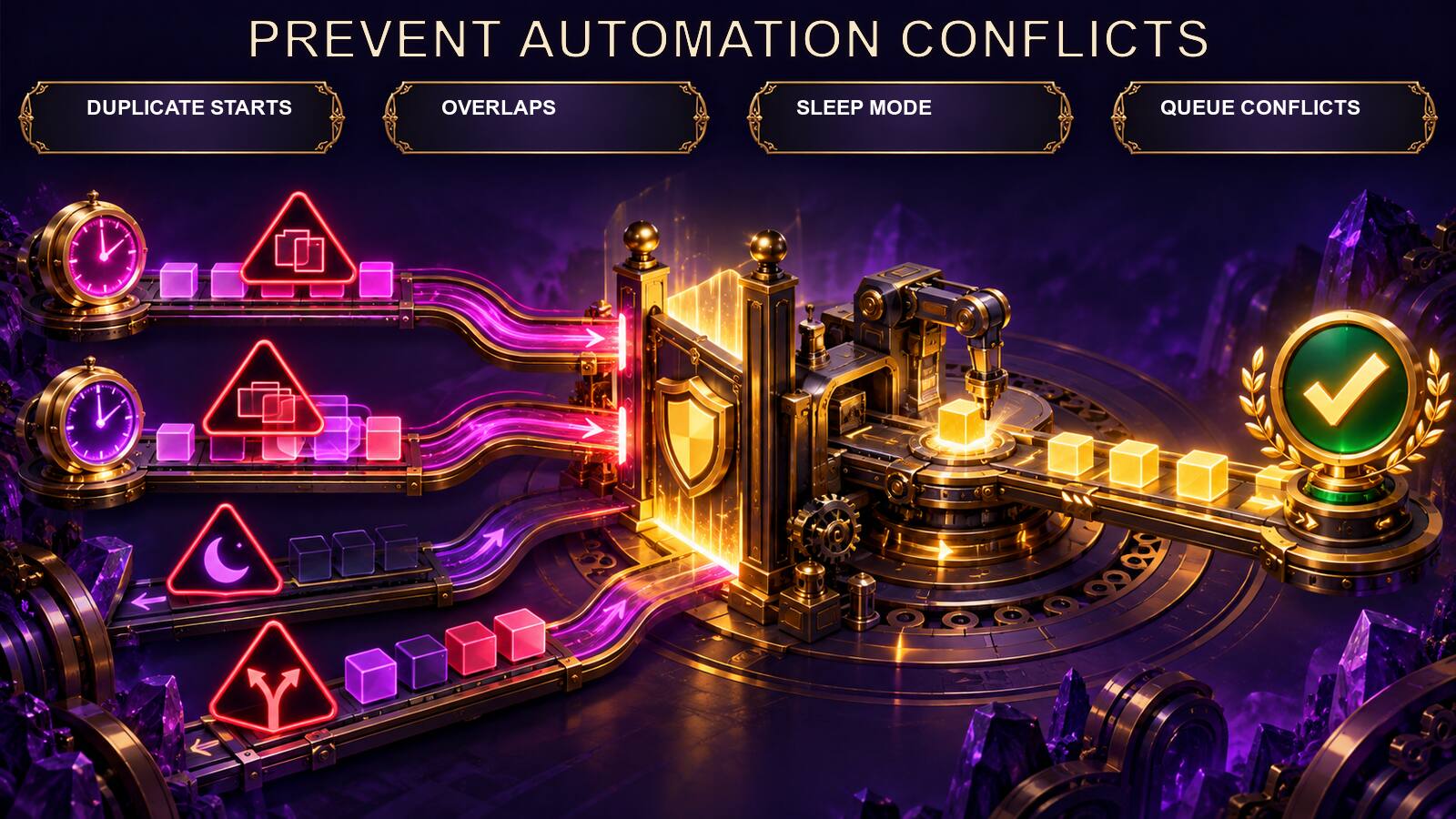
Automation can multiply organization, but it can also multiply mistakes. Three problems deserve special attention: overlapping schedules, uncontrolled repetition, and operations that contradict one another.
Overlaps occur when two active rows or instances claim the same period. Multiple Fire Toolz instances can support separate work, but each additional instance consumes memory, processor capacity, audio resources, and attention. Do not assume that because Windows opens another copy, the computer can sustain every planned template smoothly. Increase load gradually and monitor performance.
Within one schedule, leave clean boundaries. If one template ends at noon, begin the next a few minutes later rather than creating an ambiguous handoff at the exact same second. If Artillery already manages a sequence, do not separately schedule one of its internal files in the same instance. Draw the complete timeline on paper or in a simple table before entering it.
Repetition requires a stop plan. In Daily recurring mode, decide when you will review or deactivate the schedule. In Artillery, verify the Repeat checkbox and calculate one complete cycle. A repeating operation that has no supervision plan can continue far beyond the context in which it was created.
Conflicting operations are not merely a technical issue. A template for release and detachment can conflict with another demanding attachment to a specific outcome. A calming operation can be undermined by one built around agitation, domination, or obsessive monitoring. A cleansing sequence should not be mixed casually with unrelated manifestation stages directed at the same beneficiary during the same period.
Use one primary intention per operational window. Supporting templates may address different parts of that intention, but they should point in a compatible direction. If your written plan contains “release this relationship” in one row and “force this person to return” in another, the problem is not scheduling. The problem is the intention.
Automation should never become a mechanism for panic. Do not add another instance every time a result is not immediately visible. Do not restart the whole queue because you missed watching one transition. Do not interpret a Windows notification, an audio glitch, or a momentary interface pause as proof of resistance, attack, or metaphysical opposition. Inspect the technical evidence first.
A clean practice uses defined check points. Confirm the start, inspect once during an appropriate interval, confirm the final stage, and review the log. Step away between those checks. The purpose of automation is to reduce constant supervision, not create a new form of compulsive surveillance.
9. Protect Continuity: Power, Sleep, Updates, Paths, and Performance

Long operations depend on ordinary computer continuity. Fire Toolz must remain open. Windows must remain active. The machine must stay powered, the scheduler must retain access to every file, and system resources must remain sufficient for the templates being run.
Disable sleep for the planned interval, but do not permanently abandon sensible power and security settings. Configure the system for the session, then restore the normal policy afterward. A display turning off is different from the computer sleeping; verify the actual Windows power behavior instead of relying on appearance.
Schedule operating-system updates outside the run. Do not disable security updates indefinitely. A planned maintenance window is better than allowing a restart in the middle of Artillery. If the computer is shared, tell authorized users not to shut it down or sign out during the operation.
For important long sessions, stable power matters. A charged laptop battery provides short protection. A suitable uninterruptible power supply can protect a desktop from brief outages. Neither makes the system invulnerable, so your plan still needs an interruption procedure.
File paths are another form of continuity. Saved templates, images, audio, and scheduler configurations should live in a stable folder. Do not move the project after programming it. Do not schedule files directly from a temporary download folder, removable drive you may disconnect, or network location that may become unavailable. When migrating to another computer, transfer the complete dependency structure and validate every path.
Animated backgrounds, multiple GIFs, long audio files, many positions, and several application instances increase resource use. Watch for sluggish response, audio dropouts, flashing, excessive heat, memory pressure, or a template that takes too long to load. Simplify unnecessary animation before reducing operational clarity. A stable static background is preferable to a beautiful animated one that causes the scheduler to stall.
Test remote access separately if you intend to monitor a dedicated machine. Use strong authentication and keep credentials private. Remote-control software does not turn a home computer into an infallible cloud service, and it should not expose beneficiary images or private notes to unauthorized viewers.
Before starting, perform a continuity readback: correct Windows time, power connected, sleep disabled for the interval, updates planned, Fire Toolz open, paths stable, audio tested, disk space available, and system load normal. These checks are not separate from serious esoteric practice. They are how you ensure that the operation you designed is the operation the software can actually execute.
10. Record What Happened, Resume Carefully, and Improve the Next Run

An operation log should be factual enough to help you later. Record the date, private beneficiary code, template names and versions, automation mode, planned start and stop, duration of each stage, Repeat state, computer used, and expected completion. After the run, add the actual result: completed, interrupted, stopped manually, or uncertain.
If an interruption occurs, determine what the software actually completed. Check the time, active template, scheduler state, Windows event or restart information when relevant, and any notes you made during the last inspection. Do not automatically restart the entire sequence. Repeating completed stages may change the protocol and extend the work far beyond the original plan.
For Artillery, identify the last fully completed row and the row that was active when continuity failed. Consult the protocol notes before resuming. Some methods can continue from the interrupted stage; others may require a defined restart. If the source instructions do not answer the question, preserve the uncertainty rather than inventing a rule.
For the Automatic Clock, an interruption may mean the intended window has already passed. Decide whether the operation should be rescheduled as a new session rather than forced into a different time without reflection. For Daily mode, check whether later rows also failed or whether Fire Toolz resumed before their start times.
Separate operational evidence from metaphysical interpretation. “Row three loaded at 14:05 and the computer restarted at 14:42” is useful. “The operation was attacked because the computer restarted” is not established by the event. Technical causes such as updates, power loss, overheating, file errors, and resource exhaustion should be investigated directly.
Use the log to improve the next run. If a path broke, restructure the project folder. If transitions overlapped, add margins. If audio made the template slow, shorten or optimize it. If the schedule was difficult to understand, simplify the design or rename working copies more clearly. If you repeatedly forget that Repeat is enabled, add that state to a printed checklist beside the workstation.
The record can also protect beneficiary privacy. Use codes rather than unnecessary names in filenames and schedules. Keep identifying images and notes in a private folder. Do not publish screenshots that expose a person’s photograph, account details, file paths, or personal intentions.
Completion should lead back into life. Confirm the final stage, save the factual record, close or deactivate the scheduler as planned, and take the appropriate grounded action connected to the intention. Then allow the operation to be complete. Constant restarting and endless checking do not demonstrate commitment; they show that the ending was never designed.
Fire Toolz automation is most effective as a disciplined operating framework: prepare carefully, choose the mode that matches the structure, keep the computer stable, verify the result, and maintain the beneficiary’s autonomy. The Automatic Clock gives one template a precise window. Daily scheduling gives a recurring practice a clear rhythm. Artillery gives a multi-stage method an executable order. Used with clarity, these tools free your attention without surrendering your responsibility.
Ready to build an automated practice of your own? Explore Quantum Radionics Fire Toolz and begin with one verified template, one clear intention, and one scheduling mode you can explain from start to finish.