
Opening a blank Fire Toolz workspace can feel liberating and slightly intimidating. There is no finished arrangement telling you where the beneficiary belongs, which filter to load first, or how many positions you should use. That freedom is the point. A custom template lets you translate one clearly stated purpose into a visible, reusable operation instead of forcing every goal into a premade layout.
The best custom templates are rarely the busiest. They are the ones you can explain position by position. You know what every image represents, why each decree is there, how the numbered route progresses, which person or object is identified as the beneficiary, and what you expect to review after the session. Fire Toolz gives you the tools to arrange that structure, save it, and open it again. Your job is to make the structure coherent.
This tutorial takes you from a genuinely blank canvas to a tested template file. It uses a simple personal-focus example, but the same method can be adapted to study, creativity, planning, meditation, a space, or an object. Fire Toolz is a symbolic and organizational system; it does not prove physical or medical effects, and a template should never replace professional care or ordinary action.
1. Define One Purpose Before You Add a Position

Begin outside the software. Write one sentence that describes what the template is for. The sentence should be specific enough to guide your choices and broad enough to remain readable when you return to it later. “Support a calm, consistent writing session for my own project” is workable. “Fix my career, relationships, health, money, and every obstacle at once” is not one purpose; it is a collection of unrelated desires.
Translate that sentence into a short design brief. Identify the beneficiary, the main tendency, any genuinely different supporting tendency, and the point at which the operation should close. If the beneficiary is you, say so in your private notes. If the beneficiary is another consenting adult, decide what identifying image and name you are authorized to use. For a place or object, decide which photograph unmistakably identifies that exact target.
Now ask what part of the goal must happen in the physical world. A focus template can accompany a writing schedule, but it cannot write the pages. A calm-space template can accompany cleaning and boundary-setting, but it cannot repair a broken lock. Writing down the ordinary action keeps the operation connected to a practical plan and prevents the template from becoming a substitute for decisions you still need to make.
Use positive, autonomous language. A useful intention describes the quality you want to cultivate: steady attention, clear communication, orderly preparation, restorative rest, or consistent action. Avoid decrees intended to override another person’s decisions or to guarantee medical, legal, financial, or relationship outcomes. Consent is part of good design, not a decorative disclaimer added later.
Your first design brief can be only four lines:
- Purpose: support a calm, consistent writing session.
- Beneficiary: the operator, identified by name and current photograph.
- Main tendency: focused creative work.
- Practical action: work for forty-five minutes on the outlined chapter.
This brief gives every later choice a test. If an image, sound, filter, or extra position does not support the brief, leave it out of the first version. You can always make a new version after the simple template works technically.
2. Choose the Smallest Layout That Can Express the Operation
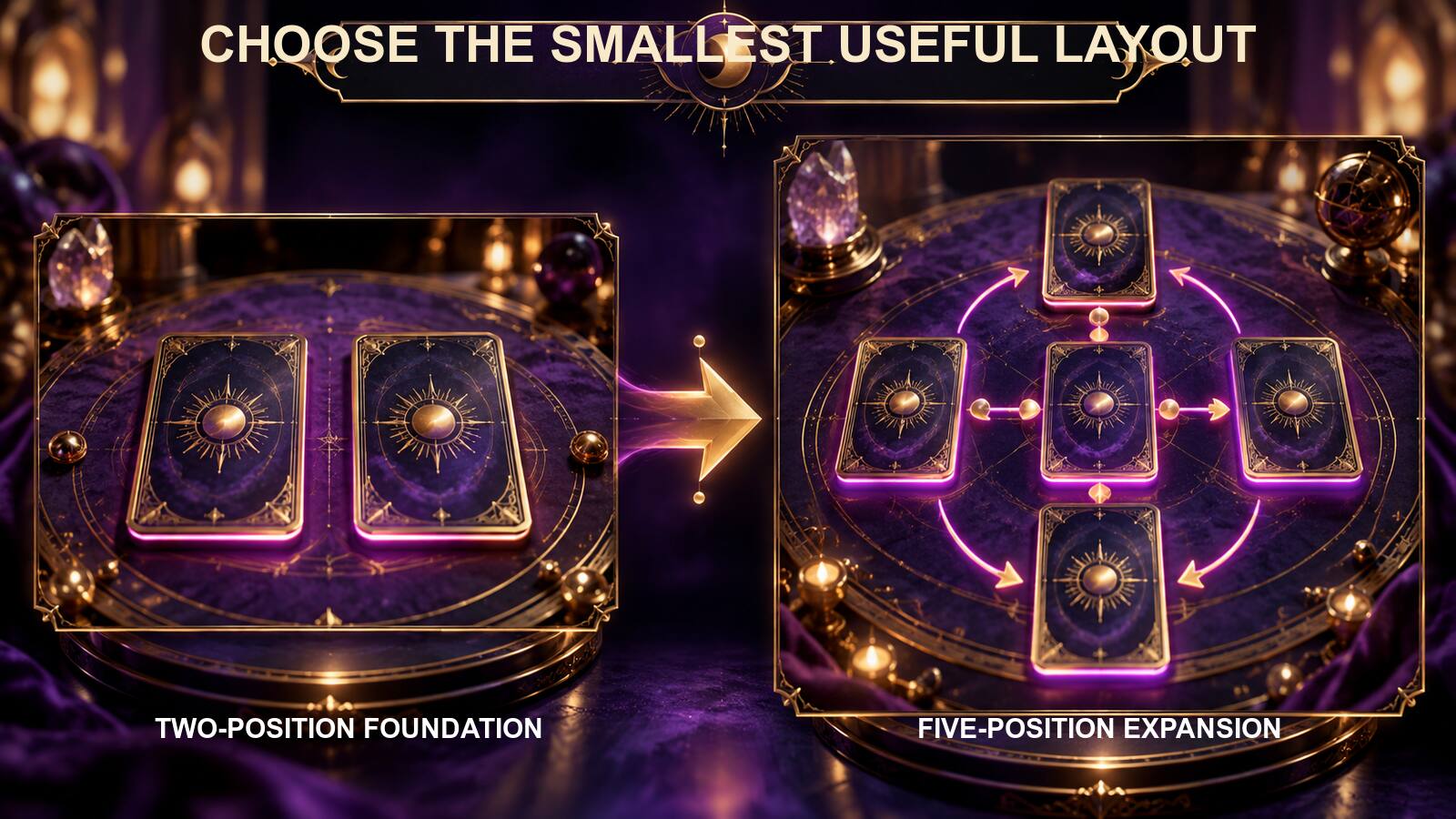
In Fire Toolz, the Positions control determines how many working boxes appear on the canvas. A simple operation can begin with two positions: one for the filter and intention, and one for the beneficiary. That arrangement is enough to learn the complete cycle of configuring a position, adding a transfer card, starting the operation, and saving the result.
More positions are available, but capacity is not an instruction to fill every slot. Every added position creates another image, name, decree, route step, and potential file dependency. It also makes the final template harder to audit. The right question is not “How many positions can I use?” It is “How many distinct functions does this operation actually need?”
For the writing example, a four- or five-position layout may be appropriate after the two-position version is understood. One position can represent preparation, a second sustained attention, a third creative expression, a fourth the beneficiary, and a fifth a symbolic close or grounding step. These functions are different enough to justify separate places in the route.
The numbered order matters. Fire Toolz moves the transfer process through positions in their logical numerical order, even if you drag the boxes into a visually different arrangement. A beautiful circle on screen does not change position 1 into position 4. Decide the sequence first, then use spatial arrangement to make the sequence easier to understand.
If you choose a symbolic geometry supplied as a blank template, preserve the intended relationship between its positions. A five-pointed layout, for example, may use a particular correspondence between slot number and visual point. If you are building freely, you have more latitude, but you should still be able to trace the route without guessing.
Start with a paper sketch or simple list. Write the position numbers down the left side and assign one role to each number. Put the beneficiary near the end unless the specific method you are following directs otherwise. Reserve a final position for closure or grounding only when that is part of your chosen framework. This tiny plan prevents the common mistake of loading attractive images first and trying to invent their purpose afterward.
A disciplined layout also protects computer performance. Static JPG or PNG images are lighter than multiple animated GIF files. A small template is easier to test for missing images, unreadable text, overlapping audio, and memory pressure. Complexity should be earned through a clear function, not added to make the screen look more powerful.
3. Configure Each Position: Image, Name, Decree, and Display
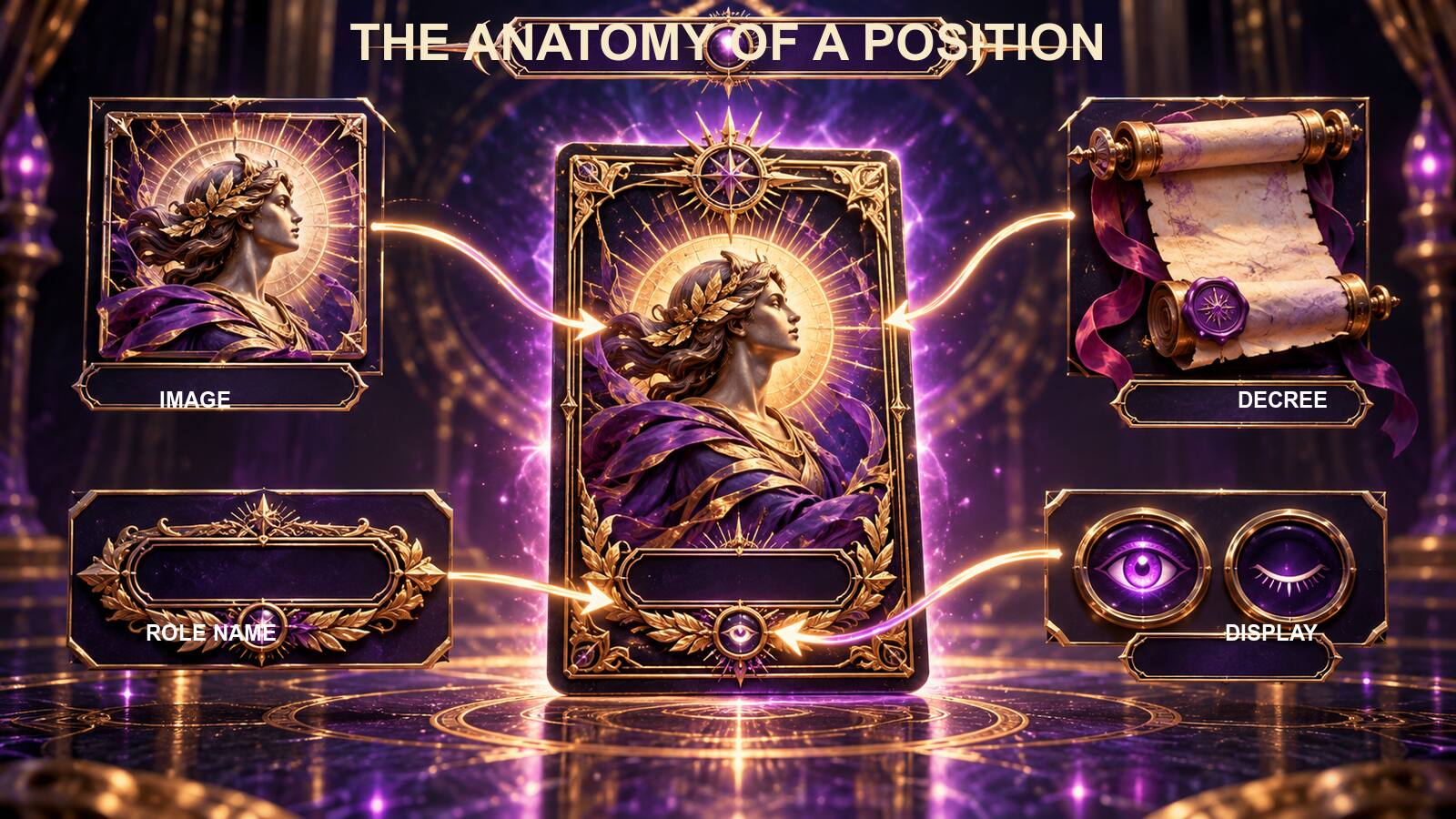
After selecting the position count, double-click the first gray box to open the position configuration. Confirm the displayed position number before changing anything. When several boxes are close together, it is easy to open the wrong one and replace a beneficiary with a filter or write a decree into an unintended slot.
Select an image that represents the function of the position. Use resources you own, created yourself, received with the product, or have a compatible license to use. An image found through a search engine is not automatically free to place in a public or commercial template. Store the chosen files in a stable project folder before you link them from Fire Toolz.
Give the position a short functional name. “Focus,” “Creative Expression,” “Beneficiary,” and “Close” are more useful than dramatic titles that do not tell you what the position does. The name is an orientation aid. It should help you understand the arrangement at a glance months after you created it.
Use the Text area for the decree or intention. A good decree is readable, affirmative, and specific to the template’s purpose. For the focus position, you might write: “I direct my attention calmly to the next clear step of this writing project.” For the beneficiary position, use the authorized identifying name rather than a general placeholder that could be mistaken for finished personalization.
Review the complete sentence for agency. “I communicate clearly and listen with patience” describes your own conduct. “A particular person must agree with me” attempts to control someone else. The first can support a personal reflective practice; the second should be rewritten. Ethical wording often improves design quality because it narrows the operation to choices you can actually make.
Activate Show Text when you want the decree visible on the main canvas. If Show Text is off, the words may remain saved but hidden during the visible operation. Decide deliberately. Visible text is useful during testing because it makes an accidental placeholder or misspelling obvious. Later, you may hide a long decree for a cleaner visual layout while retaining it in the configuration.
If the position uses radionic values, do not invent or replace them casually. Values already included with a known filter may be part of its original design. Personalized values generated through the virtual touchplate belong to your chosen practice, but they are not objective measurements of a person, illness, or event. Record why a value is present so that a future edit is understandable.
Click Update before closing the position window. Then inspect the box on the canvas. Confirm that the image appeared, the role name is correct, the intended text is visible or intentionally hidden, and the box remains legible at its current size. Repeat this complete review for every position rather than configuring the entire layout from memory and hoping that each change was retained.
4. Identify the Beneficiary Without Creating a Privacy Problem

The beneficiary position identifies where the operation is directed within the symbolic structure. For a person, that usually means a name and photograph. For a home, workspace, crystal, bottle, plant, or other object, it can mean a clear photograph and a concise label. Specific identification helps you avoid opening an old template and assuming it already points to the new target.
Personal data deserves ordinary security. A full name and identifiable photograph should not be copied into shared folders, screenshots, tutorials, or downloadable template packs without permission. Use a private project directory with appropriate access. If you need to demonstrate a layout publicly, replace the real photograph and name with a clearly marked fictional example.
Consent applies before the operation begins. Do not use a photograph of a person merely because it is available on social media. The fact that an image can be downloaded does not grant permission to place it in a private spiritual practice, redistribute it, or upload it to a template. For minors, vulnerable individuals, and anyone who cannot give informed consent, choose a different, self-directed purpose.
When you configure the beneficiary position, verify three things together: the label says Beneficiary or another accurate role, the text identifies the same subject shown in the image, and the decree elsewhere in the template addresses the intended goal for that same subject. Mismatches usually happen when a previous template is duplicated and only one field is updated.
Object and place photographs require the same careful matching. A generic glass of water does not necessarily identify the actual bottle you intend to use. A stock photograph of a house is not your own room. When practical, take a current image of the exact object or space. Keep the physical item clearly labeled so you do not confuse it with another one after the template is saved.
If no photograph exists, some practitioners use a symbolic mark or written identifier. Treat that as a representation, not as evidence of a measurable link. The important technical point is consistency: the label, image, notes, and practical handling should all identify the same target.
Before saving a reusable master, remove real personal data. Keep a clean, unpersonalized version with an obvious placeholder such as “ADD AUTHORIZED BENEFICIARY.” Then save each personalized operation under a new filename. This gives you a safe starting point without risking accidental reuse or public exposure of someone else’s information.
5. Add Chi Transfer Cards, Backgrounds, and Optional Audio
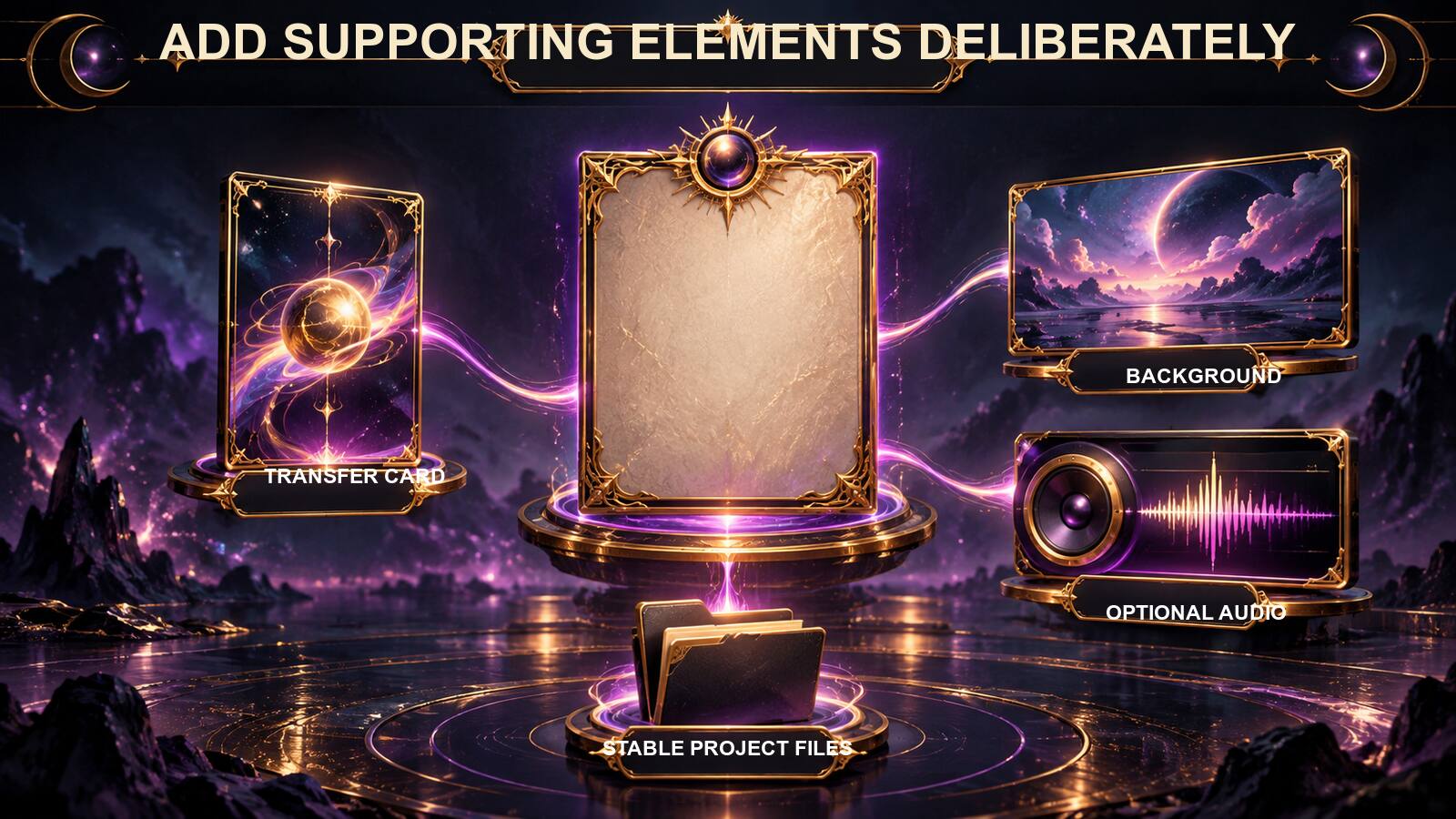
Open Chi Cards or the transfer-card manager from the main toolbar. Add an entry with the plus control, select it, load the intended transfer-card image, and enable it. An entry that exists in the list but is not enabled is not active in the demonstrated configuration. Check the preview and the enabled state before leaving the manager.
The exact number of transfer cards belongs to the template design and software version. For a beginner’s custom template, one clearly identified and enabled card is easier to verify than a crowded list. If you add more, review each row independently; do not assume that selecting an image in one row updated the others.
A background image is optional. It can create visual coherence or help you recognize a template family, but it does not compensate for an incorrect beneficiary or confused decree. Choose a background that leaves the position cards readable. Highly detailed animated backgrounds may compete with text and increase memory use, so begin with a static image.
Audio is also optional. Fire Toolz can use a background sound for the whole template and, in supported versions, a sound attached to an individual position. These are different layers. Background audio can continue as the transfer route advances; position audio may play when the card reaches that slot and can affect the timing of the route.
Use audio you have the right to use. Record your own spoken affirmation or choose licensed music, tones, or ambient sound. The words should be voluntary and understandable, especially if another person will hear them. Do not hide persuasive messages, and do not describe a frequency as a treatment or guaranteed mechanism. Frequency labels can be part of sound design without establishing medical or supernatural effects.
Test every file outside Fire Toolz first. Confirm that an MP3 or WAV opens, that its volume is comfortable, and that the correct playback device is selected. Then attach it and run a short template test. If several sounds overlap, simplify the arrangement or use the Windows Volume Mixer to control individual application instances where appropriate.
Keep all dependencies together. A sensible project folder can contain the template file, a subfolder for images, a subfolder for audio, and a private notes document. Avoid moving those files casually after saving. A template may retain a path to a local resource, and a later move can leave a blank image, silent position, or missing background.
6. Arrange the Canvas and Audit the Logical Route

Drag the configured boxes into a layout that makes their relationships easy to see. Leave enough space around the beneficiary, keep long text away from busy background details, and avoid stacking cards so closely that one obscures another. The arrangement is a reading aid; the position numbers still determine the logical route.
Trace the operation out loud. “First preparation, then focused attention, then creative expression, then beneficiary, then close.” If you cannot say the route in one sentence, the design may be doing too many things. Remove duplicates or divide the work into separate templates rather than forcing several unrelated aims into a single file.
Inspect the route for gaps. Every position should have its intended image, name, and decree. A gray box usually indicates that an image has not been selected or retained. A card with a generic label may still be a placeholder. Open any uncertain position, verify its number, and click Update after correcting it.
Now inspect the visual hierarchy. The beneficiary should be unmistakable. The main tendency should not look secondary to an ornamental background. Supporting positions should be distinguishable without shouting over the core purpose. Use consistent naming and image proportions to make the template readable.
If you used animated images, watch the canvas for a few minutes before starting. Confirm that every GIF displays correctly and that the interface remains responsive. Check Task Manager if the computer begins to slow down or shows blank pink areas in place of media. Replace unnecessary animation with static JPG or PNG files when stability improves.
Review the Notes area and write what a future user needs to know: purpose, positions to personalize, required files, optional audio, suggested test duration, and any practical actions paired with the operation. Notes are especially important when the visible canvas uses short labels. They preserve the reasoning that the artwork alone cannot communicate.
Finally, compare the canvas with your original design brief. The template should still express the one purpose you wrote before opening Fire Toolz. If the design drifted, return to the brief rather than rationalizing every extra element. Editing is part of template creation.
7. Run a Short Technical Test Before Saving the Master

Do not make the first run an unattended session. Begin with a short technical test while you are present. The goal is not to judge a metaphysical result; it is to confirm that the template behaves as configured. Watch the images, text, transfer route, sounds, timer, and controls.
Start the operation and verify that the correct template is on screen. Observe which position becomes active first and whether the route follows the intended numbering. If a position has attached audio, confirm that it begins at the expected point and that the route pauses or proceeds as the software normally behaves. Make sure the Stop control remains available.
Check the computer as well. The application should remain responsive. Images should render fully, not as pink or empty boxes. Audio should come from the intended device at a comfortable level. CPU and memory use should remain reasonable for your system. If performance is poor, stop, reduce animated media or concurrent instances, and test again.
Use the test to find wording errors. Visible decrees often reveal duplicated words, old beneficiary names, and inconsistent tense. Correct the position and click Update. If a change alters the template’s structure, repeat the short test rather than assuming the rest of the route is unaffected.
Then stop the operation intentionally. Knowing how to stop and restart a template is as important as knowing how to begin. A symbolic practice should remain under the operator’s control. If audio continues after stopping, determine whether it is coming from Fire Toolz, another open instance, or a separate media player.
Record what you observed. A simple checklist is enough: all images present, correct beneficiary, correct order, audio verified, timer moving, stop successful, computer stable. Separate observation from interpretation. “Position three audio played for twenty seconds” is observable. “The audio guaranteed a result” is not.
Only after this test should you save the design as a reusable master. Technical testing protects the work you have already done and prevents a small missing file from becoming part of every future copy.
8. Save, Version, Reopen, and Reuse the Template Safely
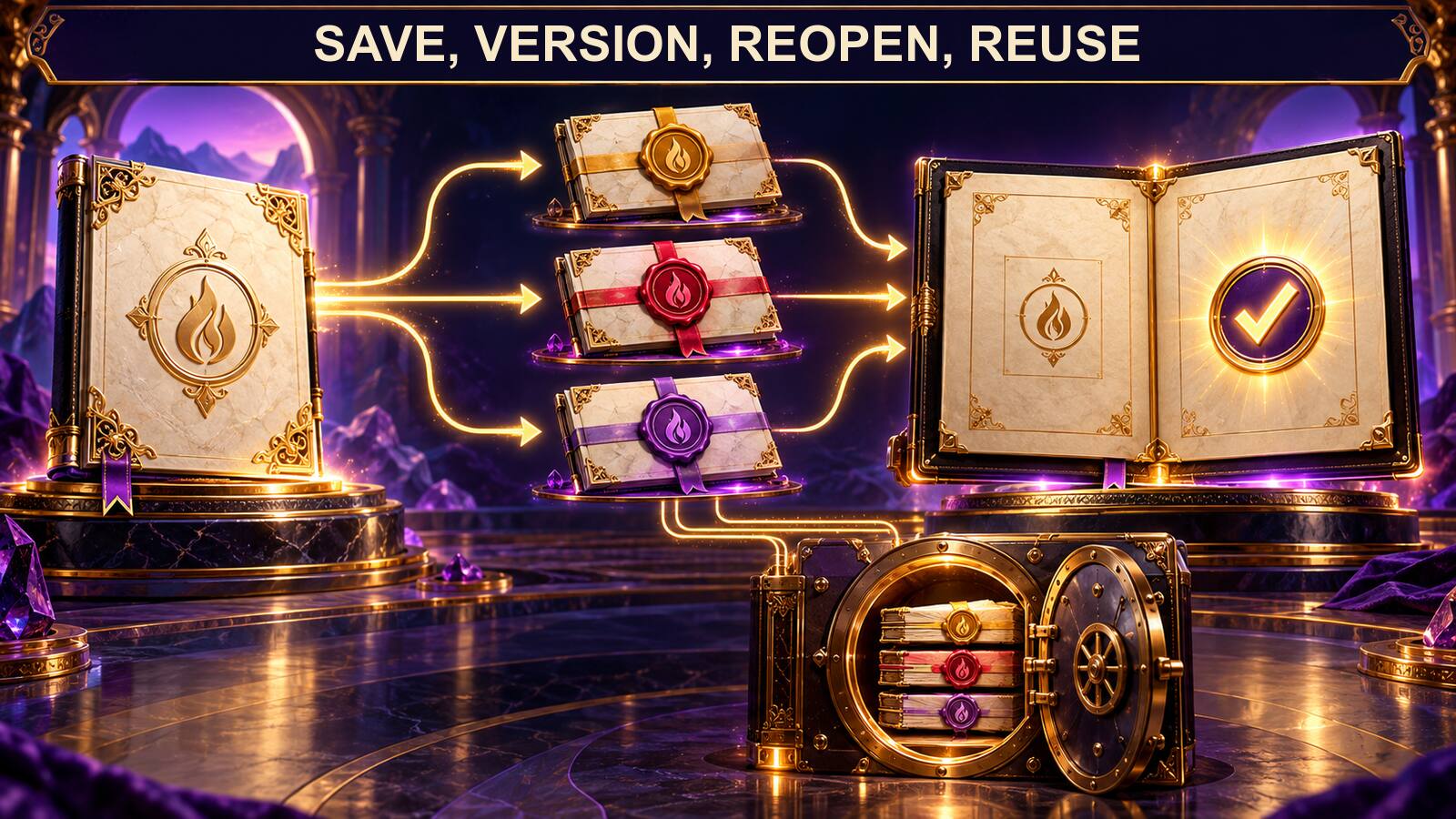
Use Save to create the Fire Toolz template file in a stable folder. Choose a descriptive filename that communicates purpose and version, such as Writing-Focus-Master-v1. Avoid public filenames that expose a person’s full name, health information, or other sensitive details. The save dialog may identify the file as a Quantum Radionics Fire Tools Template.
Never overwrite the untouched blank layout you began with. Save As a new file before you personalize it. Keep one clean master without private beneficiary data, then create dated or versioned copies for actual sessions. This protects your starting point and makes it possible to compare changes.
Close the template and reopen it with Load. This is a crucial test. Confirm that every image, card, decree, radionic value, background, and audio path survived the save. A template that looked correct before saving is not proven reusable until it opens correctly from disk.
If media is missing, check whether the file was moved, renamed, or stored on an unavailable drive. Restore the expected path or select the resource again, then save a new version. Do not distribute the template until you know what files it depends on and whether you have permission to include them.
Maintain a brief change log. Version 1 might be the two-position technical foundation. Version 2 may add one supporting filter. Version 3 may replace a heavy GIF background with a static image. This record helps you identify which change caused a new problem and discourages endless, undocumented additions.
When you reuse a personalized copy, review it as if you did not create it. Confirm beneficiary, purpose, image paths, transfer-card enabled state, optional audio, notes, and timing. A saved file preserves a configuration; it does not know that your current intention or target has changed.
Back up the complete project folder, not only the template file. Keep a second copy on trusted storage, and protect any personal images. A screenshot can document appearance, but it is not a replacement for the actual template and its dependencies.
The finished custom template is therefore more than a decorated canvas. It is a well-organized system: one purpose, a deliberate route, licensed and stable resources, an authorized beneficiary, a tested configuration, and a version you can understand when you reopen it. That is what makes custom work reusable.
9. Use a Final Quality Gate Before Every Real Session

A master template can be technically sound and still be wrong for today’s session. Build a final quality gate that you perform every time you load it. The gate should be short enough to use consistently and specific enough to catch the errors that matter. It is the boundary between “this file opened” and “this is the operation I intend to run now.”
First, read the title and purpose. Confirm that the file is the current approved version, not an early experiment with a similar name. If several files are open, close the ones you do not need. A clear filename and a visible version number reduce the chance of editing one copy while running another.
Second, verify the beneficiary. Compare the name, image, and intended purpose. If any one of those belongs to a previous session, stop and correct it. Do not rely on the thumbnail alone; similar photographs can be easy to confuse. For an object, match the image to the label on the physical item. For a place, make sure the photograph represents the correct room or property.
Third, read every decree. Look for unresolved placeholders, instructions aimed at controlling another person, exaggerated promises, and goals that no longer match your plans. Keep the wording oriented toward voluntary practice and practical action. If the purpose concerns health, law, money, or safety, retain the appropriate professional or real-world measures instead of asking the template to replace them.
Fourth, inspect all media. Every image should appear normally, every animation should run without slowing the interface, and every audio file should play through the intended output at a safe level. A blank or pink area is a fault to correct, not a symbolic sign. A missing audio path is a file-management problem. Resolve it before starting.
Fifth, check the Chi transfer-card list. Confirm the correct card image and enabled state. If the design uses more than one entry, inspect every row. Then trace the numbered position route and make sure that the visual arrangement has not hidden or covered a necessary slot.
Sixth, review timing. A hands-on session needs an intentional start and stop. An automated session also needs correct system time, an awake computer, stable power, and a window in which updates will not restart the machine. Do not choose a duration because the number looks mystical; choose it from the method you understand and can supervise responsibly.
Seventh, identify the paired action. Open the writing document, prepare the study materials, clean the workspace, label the object, or take the other practical step associated with the purpose. This converts the template from an isolated digital ritual into one part of an accountable routine.
Finally, decide what you will record afterward. Note the file version, start and stop time, technical interruptions, and the practical work completed. Avoid rewriting ordinary events as proof that the software caused them. A factual log helps you improve the configuration without turning every coincidence into a claim.
This final gate takes only a few minutes once it becomes familiar. It protects privacy, reduces operational mistakes, and keeps your practice deliberate. If the template fails any check, postpone the session long enough to correct it. The ability to pause is a sign of control and care.
To build your own structured radionics workspace, explore Quantum Radionics Fire Toolz and begin with the smallest template that expresses your purpose clearly.