
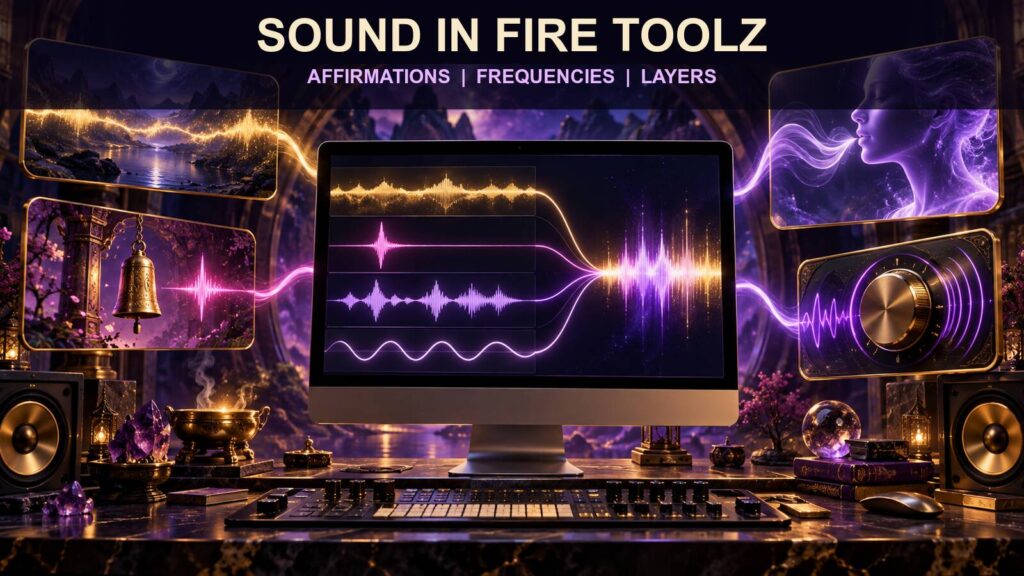
Sound can turn a Fire Toolz template from a silent visual arrangement into a timed, multisensory practice. You can use a background track for the overall atmosphere, attach audio to an individual position, record a spoken affirmation, or add a tone generated for creative or contemplative use. You can also create an unbearable wall of overlapping files if you add every sound simply because the software allows it.
Good audio design begins with roles. Background sound supports the whole operation. Position sound belongs to a particular step and may affect the route while it plays. A spoken affirmation carries language that must be understandable, voluntary, and aligned with the decree. A generated tone is sound design, not medical treatment or proof of a special frequency effect.
This guide shows how to plan, prepare, load, balance, test, and save Fire Toolz audio. It emphasizes what you can verify—file compatibility, playback, timing, volume, routing, licensing, and template behavior—while keeping spiritual interpretation separate from technical fact.
1. Give Every Audio Layer a Clear Job

Before choosing a file, decide what the sound should do in the experience. Background audio can establish continuity for the whole session. A position sound can mark a transition or make one stage more noticeable. A spoken affirmation can repeat the exact wording of the intention. A simple tone can provide a neutral sonic texture.
Write the role beside the filename in your private plan. If you cannot describe the role in one sentence, the file is probably ornamental. Ornament is not forbidden, but it should not make the template harder to understand or operate.
Avoid using two files for the same purpose. A background affirmation, a position affirmation, and another spoken track from a second open instance may compete for attention. More sound does not automatically create a more effective operation. Layering should improve clarity, not demonstrate how many tracks the computer can play.
Keep the beneficiary in mind. If someone else will hear the audio, obtain consent and disclose the content. Do not use hidden phrases, subliminal messages, or recordings designed to influence a person without awareness. A file that cannot be understood or reviewed should not be treated as an ethical shortcut.
Connect the sound to a practical setting. A calm background can accompany journaling. A brief chime can mark the move from preparation to focused work. A spoken phrase can remind you of a voluntary commitment. The audio does not perform the practical action for you; it provides structure around it.
Decide whether silence would serve the operation better. Some templates rely on visual focus, and added sound can become a distraction. Silence is a valid design choice. The goal is a coherent experience, not a mandatory multimedia display.
2. Understand Background Sound and Position Sound

Fire Toolz separates background sound from sound attached to an individual position. Background sound begins with the template and supports the operation as the transfer route continues. It is the broadest audio layer and should generally remain stable and unobtrusive.
Position sound is connected to one card or slot. In supported versions, the audio begins when the transfer card reaches that position. The route can pause for the duration of the file before proceeding. That makes the length of the clip part of the operational timing.
This difference matters when you plan a sequence. A three-minute position recording may turn a short route into a much longer one. Several long files can multiply the total duration. Record or inspect the length of each clip and test the complete route instead of estimating.
Use background sound for continuity: ambient music, a neutral drone, nature sound, or a spoken track intended to remain present. Use position sound for specificity: one concise affirmation, an audible transition, or a short tone tied to that position’s purpose.
Do not assume that disabling a sound removes the stored file path. In some configurations, turning the option off stops playback while the previous file remains associated. When you turn the option on again, the old sound may return. Verify the selected filename rather than relying only on the checkbox.
When both layers are active, listen to them together. Spoken words need room around them. A dense background track can mask an affirmation even when both files play correctly. Lower the background, simplify it, or remove it during the spoken position.
3. Prepare Compatible, Licensed Audio Files
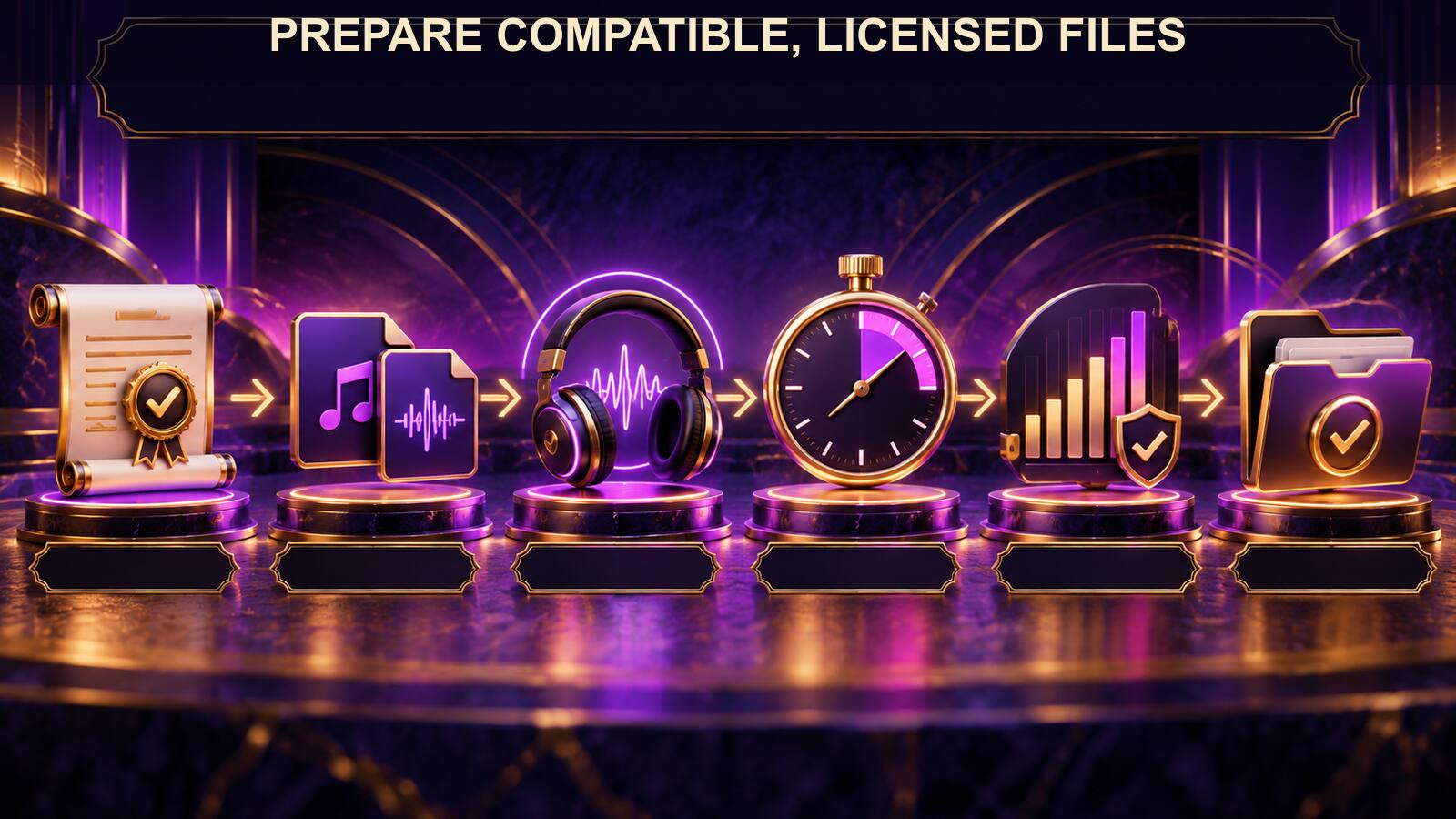
Common Fire Toolz configurations accept MP3 and WAV audio, subject to the version and codecs available on the Windows system. Test the exact file in a normal media player before loading it. If it does not play outside Fire Toolz, converting or repairing the source is the first step.
Use audio you created, purchased with appropriate rights, or obtained under a license that permits your intended use. A track available for streaming is not automatically licensed for redistribution inside a commercial template. Keep receipts, license notes, or source information with the project.
Choose filenames that describe content and role. calm-background-10min.mp3 is more useful than audio-final2.mp3. For spoken material, include a version or date when wording changes. Avoid putting sensitive beneficiary information in filenames that may appear in a shared folder.
Store files in a stable project directory before attaching them. Moving an audio file after the template is saved can break the path. A simple structure—template, images, audio, notes—makes backup and transfer easier.
Check duration and loudness. A clip that is much louder than the background can startle the listener. A nearly silent file may technically play while seeming broken. Use a comfortable listening level, leave headroom, and avoid sudden peaks.
Trim unnecessary silence from the beginning and end, especially for position audio. Long silence can make the route appear frozen while Fire Toolz waits for the file to finish. Retain deliberate pauses inside an affirmation when they support comprehension.
Avoid enormous lossless files when a smaller compatible file provides the needed quality. Large audio, animated backgrounds, and many positions all consume resources. Test on the actual computer that will run the template.
4. Record an Audio Affirmation That Respects Agency
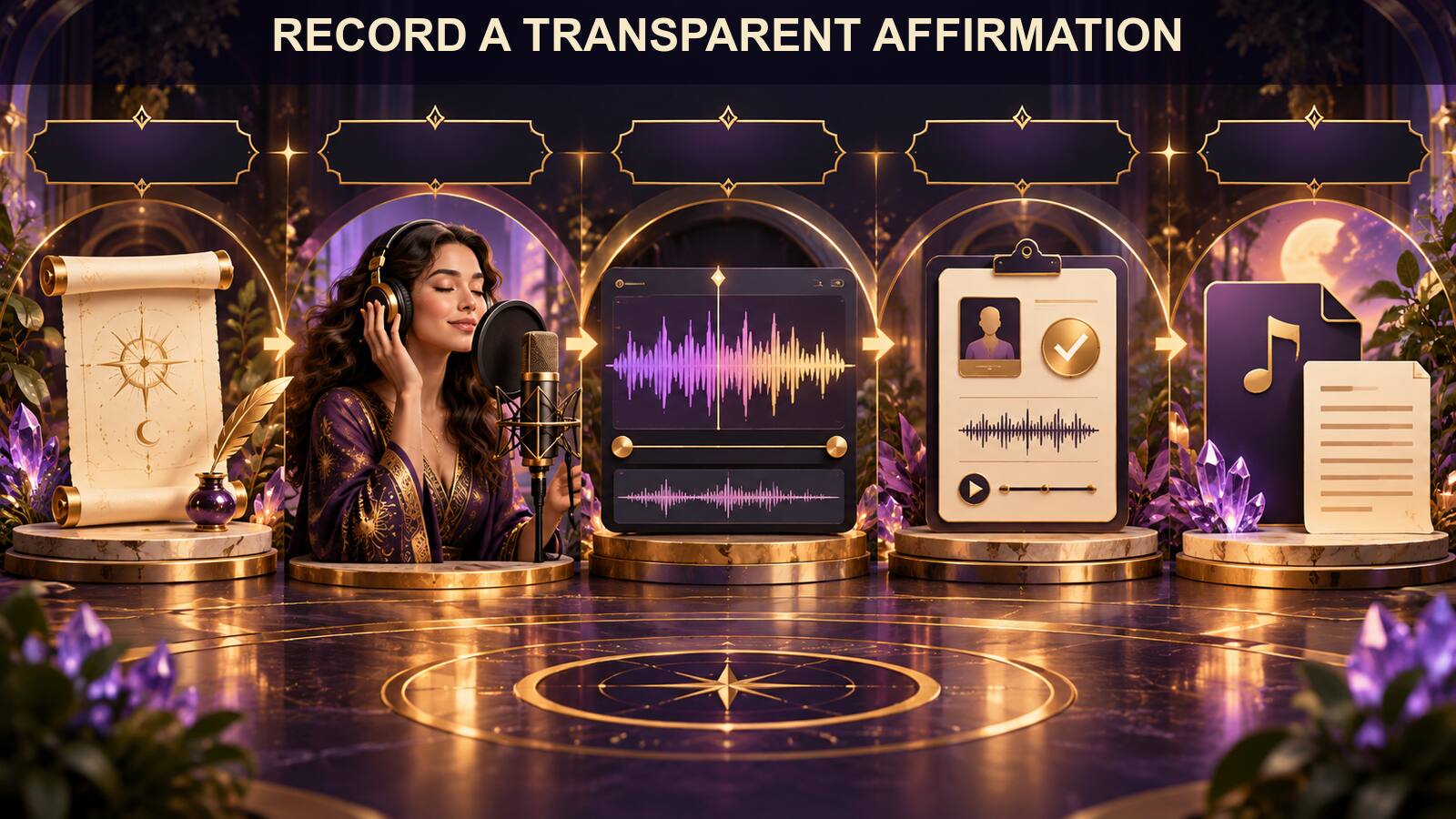
Start with the written decree. Rewrite it for the ear. Short sentences, natural pauses, and familiar vocabulary are easier to follow than a paragraph designed only for reading. Keep the speaker’s identity and intent clear.
Use first-person wording for personal practice: “I return calmly to the next useful step.” If the audio is for a consenting beneficiary, agree on wording that supports their own choices. Avoid commands aimed at controlling another person’s feelings, purchases, relationships, beliefs, or behavior.
Record in a quiet space with the microphone at a consistent distance. Speak at a natural pace. You do not need theatrical effects or whispered obscurity. The listener should be able to understand every word and stop the playback whenever desired.
Review the entire recording with headphones and speakers. Listen for accidental edits, clipped syllables, background conversations, names, or private details. Remove anything that should not be distributed. Confirm that the spoken text matches the current decree.
If you use synthetic speech, disclose that choice where appropriate and review the output carefully. Text-to-speech can mispronounce names, insert unnatural emphasis, or read punctuation strangely. Do not create a deceptive imitation of a real person’s voice.
Normalize the recording to a comfortable level without crushing all dynamics. A modest, even voice is easier to layer over ambient sound. Avoid extreme stereo effects that disappear on a single speaker or become uncomfortable on headphones.
Name and version the file, then test it outside Fire Toolz. Keep the script with the audio so its content remains auditable. Transparency is essential: a listener should never have to wonder whether hidden instructions are embedded in the track.
5. Treat Frequencies and Tones as Sound Design
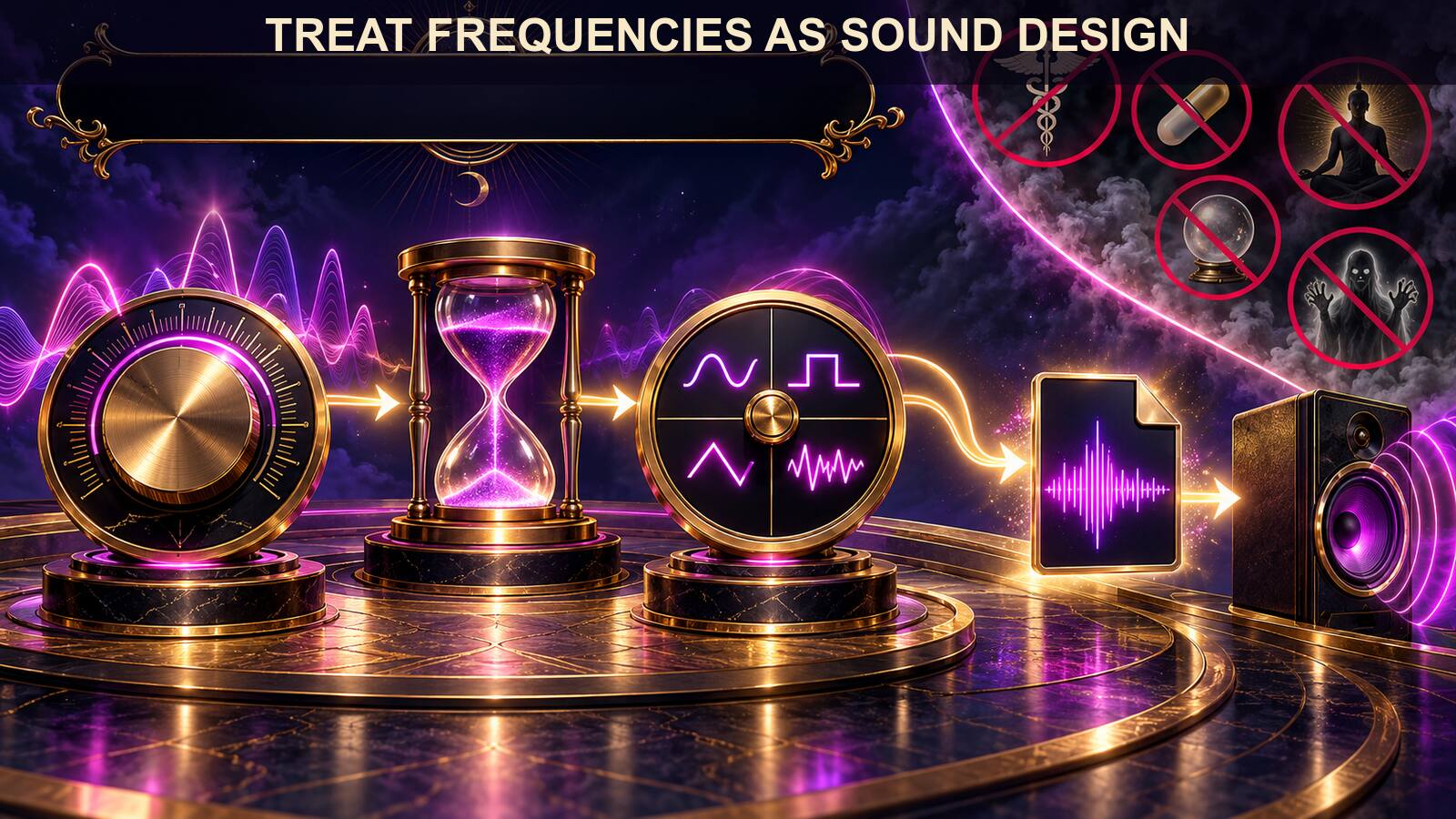
A tone generator can create an audio file from a chosen frequency, duration, and waveform. That file can be loaded as background audio or attached to a position when the Fire Toolz version supports it. The technical result is a sound wave saved in a playable format.
Frequency labels such as 417, 432, 528, 741, 852, or 963 hertz are common in online spiritual material. You may use a tone with one of those labels as a creative or contemplative choice, but the number does not establish that it heals disease, activates an organ, opens a dimension, or produces a guaranteed manifestation.
Waveform changes the character of the sound. A sine wave is smooth; square and saw-like waves contain stronger harmonics and can feel harsher. Start quietly. High volume and long exposure can be uncomfortable regardless of the number attached to the tone.
Do not listen to concentrated tones while driving, operating machinery, crossing traffic, or performing another safety-critical task. Stop if the sound causes pain, dizziness, panic, or distress. People with hearing concerns should use appropriate professional guidance.
Binaural presentations depend on different signals reaching the two ears, usually through headphones. That listening arrangement is separate from any claim about treatment. If you use it, keep the volume moderate and make the content optional.
Choose duration from the design need. A brief position tone can mark a transition. A longer background tone can support a session if it remains comfortable. Do not select length because a number seems sacred without understanding how it changes the template’s timing.
Export the file, play it in a standard player, inspect its length, and name it clearly. Then load it into a test copy of the template. The same verification process applies to tones as to music or speech.
6. Build a Layered Operation Without Masking the Message

Think of the template as a small sound mix. The background is the bed. Position sounds are foreground events. Silence creates space. The affirmation, when present, is the message that must remain intelligible.
Begin with the background alone. Set it at a comfortable level and listen for one complete loop or representative section. Then add one position sound and run the route. Adjust before adding another layer.
If Fire Toolz does not provide independent volume controls for every layer, prepare the files at appropriate levels before loading them. On Windows, the Volume Mixer can control separate application instances, which is useful when multiple copies of Fire Toolz are open. It does not necessarily separate tracks inside one instance.
Avoid frequency competition. A bright ambient track can obscure consonants in speech. A deep drone can mask a low voice. Equalization in an audio editor can create space, but the simplest solution is often to choose a quieter, less dense background.
Use silence intentionally. A quiet preparation position can precede the spoken affirmation. A silent closing position can signal that the active listening portion has ended. Not every card needs a sound.
Watch total duration. Position audio may pause progression while it plays. Write the duration of each clip, add the route timing, and test the result with a stopwatch. Automation should be based on the measured run, not on a guess.
If multiple instances are running, label each window and keep their purposes separate. Overlapping templates share system audio, processor time, and memory. Begin with one instance, add others gradually, and stop when intelligibility or performance declines.
7. Load and Test Background Audio
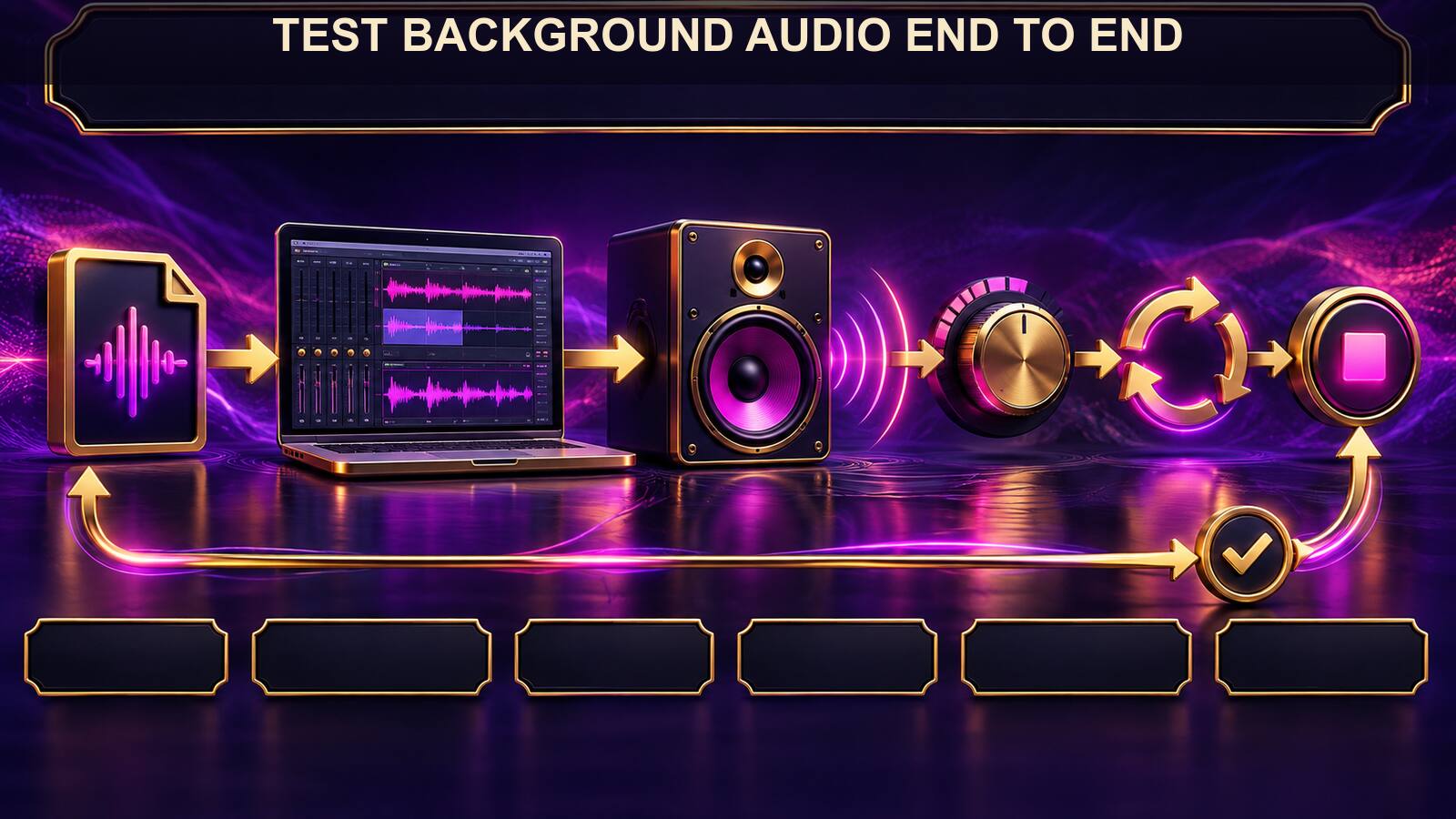
Choose the Background Sound control and select the prepared file. Confirm the path and return to the main canvas. Save a test copy before changing a working master.
Start the template while present. Listen for the first seconds, verify that the intended playback device is active, and make sure the volume is comfortable. Check that the audio continues as the route moves through positions.
Listen for the loop point when the background repeats. A sharp click, sudden volume change, or long silent gap can distract from the session. Edit the file or choose a track with a smoother loop if necessary.
Stop the operation and confirm that the audio stops as expected. If it continues, identify whether another Fire Toolz instance or external player is responsible. Use the Volume Mixer to see which application is producing sound.
Close and reopen the saved template. Test again. If the file is missing, restore the expected path or reselect it. Keep the audio in its stable folder before making the final save.
Test at the same output you will use in practice. Laptop speakers, external speakers, and headphones can produce very different balance. Use a safe level and avoid requiring headphones unless the design truly depends on them.
Record the result in Notes: filename, role, approximate duration, expected loop, and any volume adjustment. This allows a future user to distinguish an intentional quiet track from a broken path.
8. Load and Test Position Audio
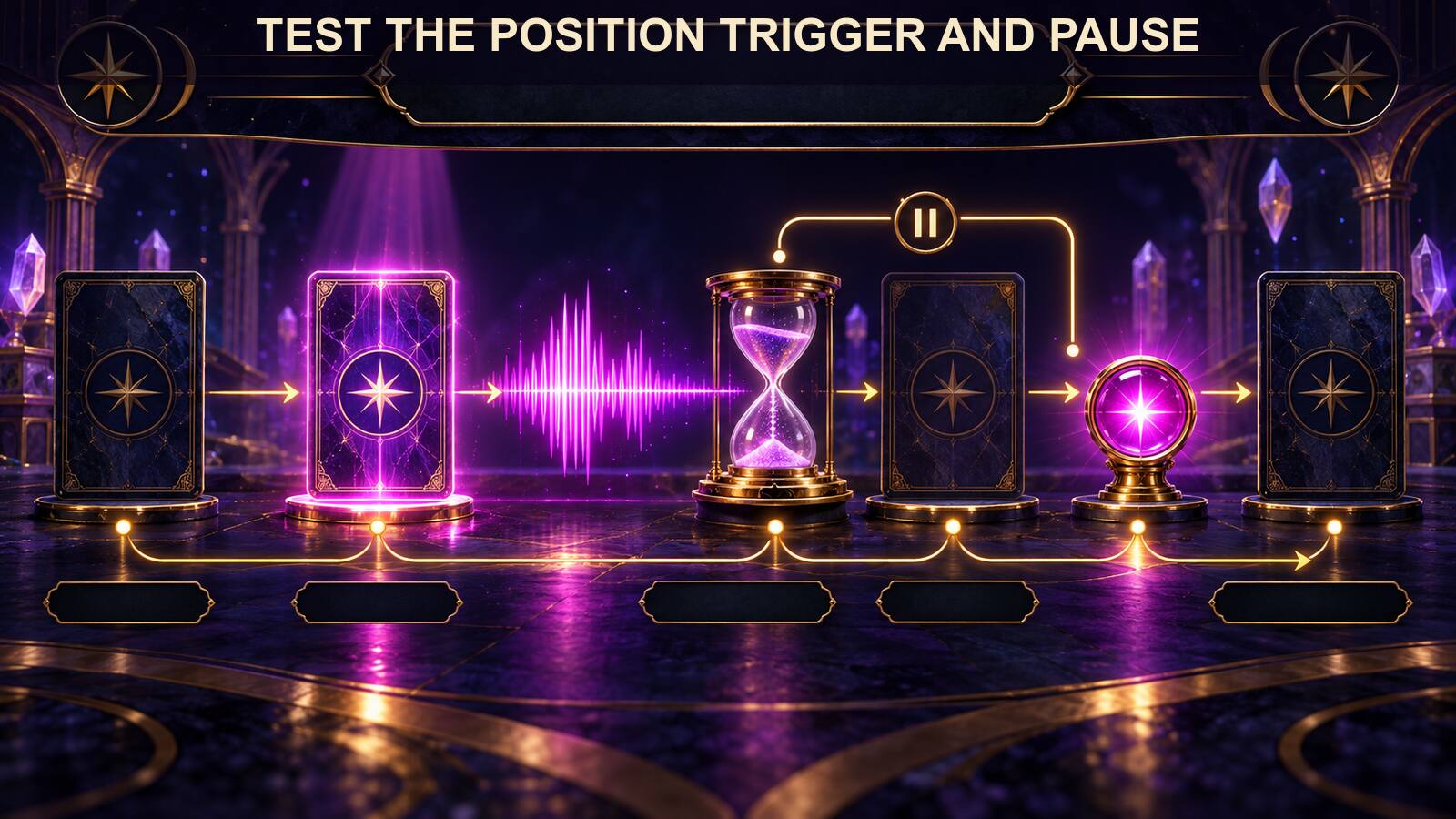
Open the intended position and confirm its number, name, image, and decree. Enable Use Sound or the equivalent control, then select the prepared file. Click Update so the position retains the change.
Run a short test from the beginning of the route. Watch for the transfer card to reach the position. Note when the sound begins, how long it plays, whether the route pauses, and when movement resumes.
If the sound starts at the wrong stage, verify that you edited the correct numbered position. Visual location does not replace logical order. Move cards apart temporarily if they are difficult to select.
If the route seems frozen, check the audio duration. The program may be waiting for the file to finish. Play the clip externally and trim unintended silence. Do not assume the pause is a software failure until you compare it with the file length.
If the clip does not play, confirm the sound option, file path, format, Windows output device, and application volume. Test the file outside Fire Toolz. Re-encode it to a common MP3 or WAV format when compatibility is uncertain.
Repeat the test with the background active. Make sure the position message remains intelligible. If not, reduce or remove the background for that section. Save the tested version and reopen it to verify persistence.
Document the position audio in Notes. Include which card triggers it and how it changes timing. This is essential when the template will later be used in a schedule or Artillery sequence.
9. Troubleshoot Silence, Overlap, Distortion, and Performance
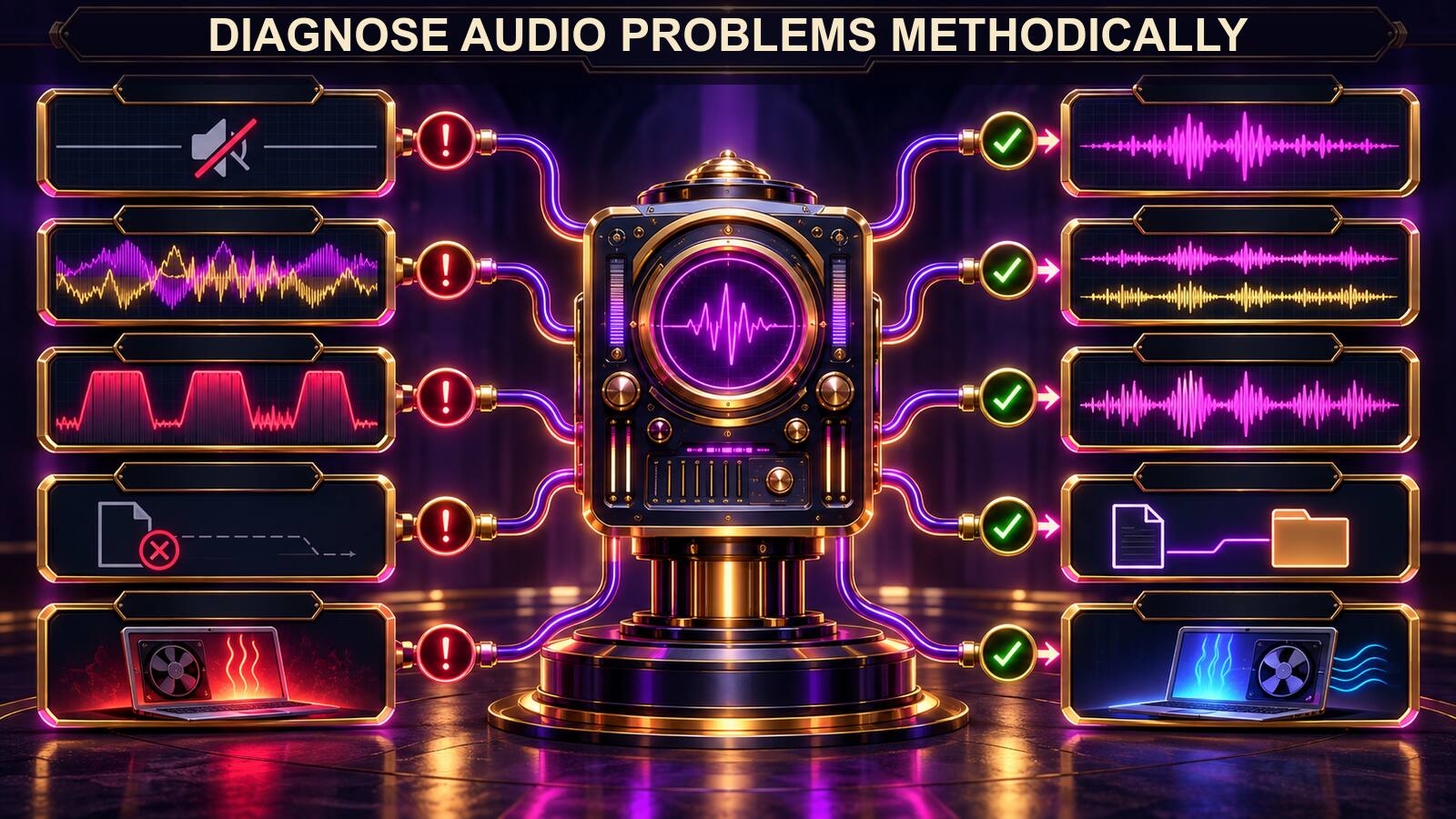
For silence, follow a fixed path: enabled setting, correct file, stable location, external playback, output device, system volume, application mixer, then template test. Changing several variables at once makes the cause harder to find.
For overlap, identify every source. Background audio, position audio, multiple Fire Toolz instances, browser tabs, and media players can all contribute. Mute sources one at a time until the conflict disappears. Redesign the mix rather than relying on extremely low volume to hide unwanted layers.
For distortion, lower levels and test the original file. Clipping already present in the recording cannot be repaired by reducing Fire Toolz volume. Re-export a clean source with headroom.
For missing paths, restore the file or select it again from the stable project folder. Avoid attaching media directly from temporary download directories, external drives that may disconnect, or folders likely to be renamed.
For slow performance or blank visual cards, reduce animated backgrounds and simultaneous instances. Audio is only one part of resource use. Watch memory and processor behavior, then simplify until the full template remains responsive.
For virtual machines or remote desktops, verify which operating system owns the audio device and whether system sound is being transmitted. Test local playback before assuming Fire Toolz is at fault.
If a template will run unattended, complete the same test while present first. Keep the computer on, prevent sleep for the intended window, schedule updates responsibly, and avoid infinite repetition unless you have a deliberate reason and a stop plan.
10. Save an Auditable Audio Template

An auditable template lets another authorized user understand what will be heard before starting. Keep the audio files, scripts, license notes, duration list, and configuration notes together.
Name every file by role and version. Record whether it is background or position audio, whether it loops, and which position triggers it. Include a transcript for spoken affirmations.
Save the Fire Toolz template as a new version after the mix is tested. Close and reopen it. Verify every path and run the route one more time. Back up the complete project folder.
Remove personal data and restricted media before sharing. A template file does not grant redistribution rights to the songs, recordings, or images it references. Replace private or licensed elements with placeholders when necessary.
Include a safety note when tones or headphone listening are involved. Encourage comfortable volume, voluntary listening, and stopping when discomfort occurs. Do not package health claims as technical instructions.
Keep a final checklist: correct template, correct beneficiary, background verified, each position clip verified, speech intelligible, duration measured, stop control tested, computer stable, files backed up, practical action ready.
11. Build a Complete Audio Operation From Scratch
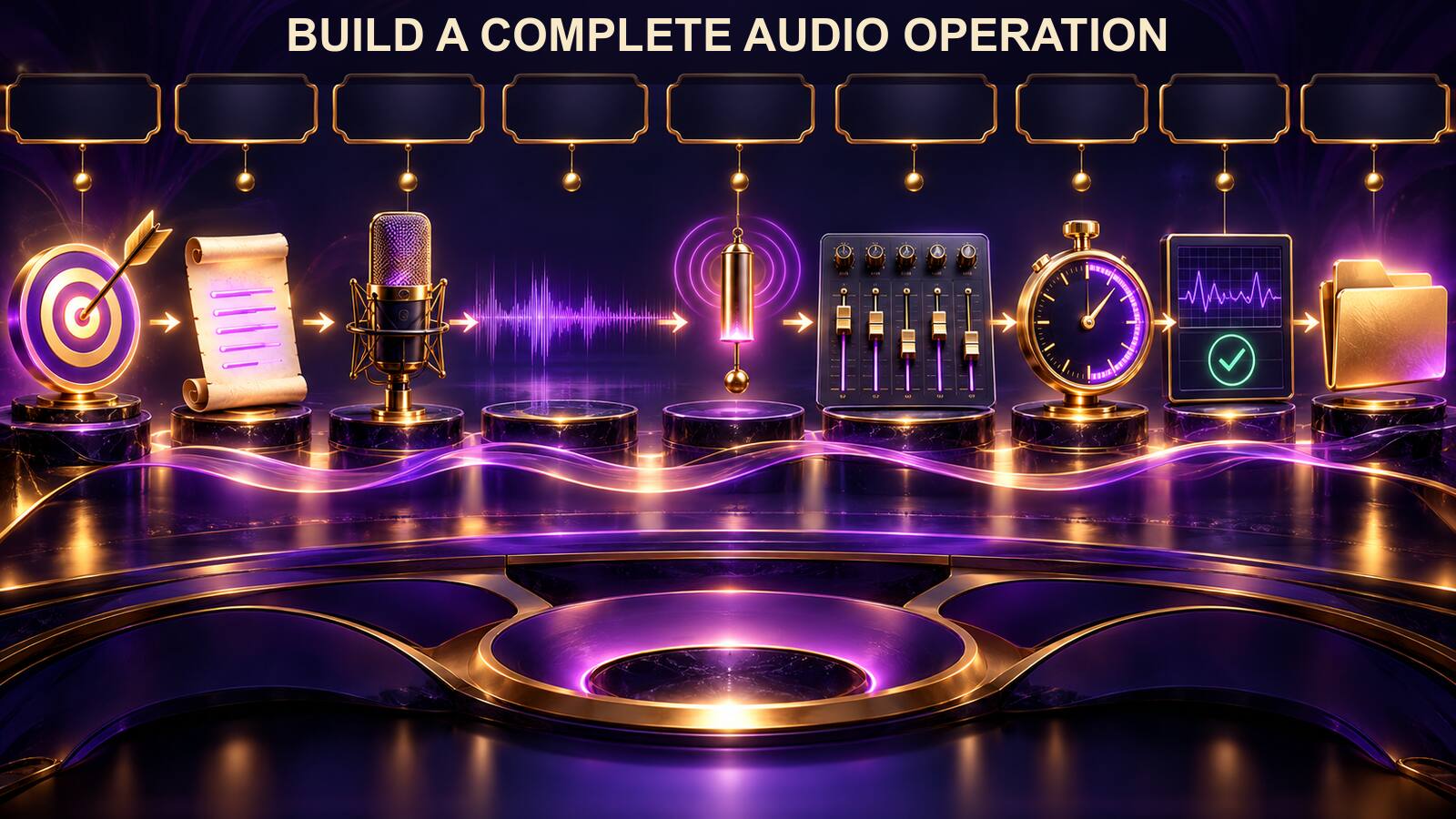
Consider a personal writing-focus template. The practical goal is to complete a forty-five-minute draft session. The Fire Toolz purpose is to support calm preparation, sustained attention, and a clear close. The beneficiary is the operator, and the audio design must remain quiet enough for actual writing.
Start with the script. The main affirmation is: “I return calmly to the next clear sentence.” Record it once in a natural voice, with a short pause before and after. Export the clean file as writing-focus-affirmation-v1.wav and save the text beside it.
Choose a background that does not contain speech. A simple ambient bed with little rhythmic change is easier to work under than a dramatic composition. Listen for ten minutes outside Fire Toolz. Confirm that it remains comfortable and does not contain sudden peaks. Save it as writing-focus-background-10min.mp3 in the audio folder.
Design four positions: Prepare, Focus, Beneficiary, and Close. Attach no sound to Prepare. Attach the spoken affirmation to Focus. Leave Beneficiary silent so the identifying position does not add another competing layer. Add one soft chime to Close.
Load the background sound and run the template. Adjust the track so it is present but not dominant. Then test Focus without the background. Make sure every word is intelligible and that the route resumes after the file ends.
Activate both. If the voice is masked, lower the background at the source or choose a sparser file. Do not keep increasing the voice until it becomes harsh. The goal is balance at an ordinary listening level.
Test the closing chime. It should mark completion without startling you. Trim excessive silence and reduce the peak if needed. Confirm that the route completes normally.
Measure the full operation. The position sounds add time to the visual route. If the Fire Toolz session is intended to precede forty-five minutes of writing, keep that distinction clear in Notes. The symbolic operation and the practical work period are related but not identical timers.
Now test the template while performing the real action. Start Fire Toolz, hear the preparation and focus cue, then write. Notice whether the background supports concentration or competes with language production. If it competes, remove it. A simpler operation that you can actually use is better than a rich mix that prevents the intended work.
Stop, save, close, and reopen. Run the audio checks again. Record filenames, durations, trigger positions, output device, and any mixer adjustment. Save the master without private data, then create a personalized working copy.
This example demonstrates a useful pattern: one quiet bed, one concise message, one restrained transition cue, and intentional silence. You can adapt the structure for meditation, study, planning, or another voluntary practice without copying the exact files or durations.
12. Keep an Audio Operation Log
An audio log helps you distinguish a reliable template from one that merely played once. Record the template version, date, computer, output device, background file, position files, and measured duration. Note whether every path survived reopening.
Track technical observations in plain language. “The affirmation began at the Focus position and lasted eighteen seconds” is useful. “The frequency was powerful” is too vague to reproduce. Describe volume as a setting or comparison when possible: background lower than speech, system volume unchanged, no clipping heard.
Record interruptions. If Windows changed the output device, a notification covered the interface, the computer entered sleep, or another instance overlapped, include that fact. It explains the session more accurately than interpreting the interruption as symbolic resistance.
Include listener comfort. Note whether the track caused fatigue, distraction, or discomfort. Reduce intensity or stop using it when necessary. A spiritual or creative intention does not justify ignoring hearing safety.
Record the practical action completed during or after the session. For the writing example, count minutes worked or words drafted. For a room-reset routine, note the cleaning or boundary-setting task. These observations help you decide whether the audio design supports the routine.
Do not use the log to claim causation. A productive day after a session does not prove that a tone caused the result. A difficult day does not prove that the value was wrong. Treat the log as a tool for operational refinement and honest reflection.
Review several entries together. If the voice is repeatedly masked, change the background. If position audio makes every run too long, shorten it. If silence produces better focus, keep the template silent. The purpose of the log is to improve the experience, not to defend every original choice.
Archive old versions with their scripts and licenses. When you replace a file, record the change. If you share the template, include only the media you are authorized to distribute and remove private recordings.
Use the log as a stop rule as well as an improvement tool. If the same technical fault appears repeatedly, suspend automated use until you fix it. If a track repeatedly causes discomfort or prevents the practical task, retire it instead of persuading yourself to tolerate it. If a spoken affirmation no longer reflects your values, replace both the script and recording in a new template version. Audio remains useful only while it is voluntary, understandable, technically stable, and aligned with the purpose you chose.
Before beginning a long or scheduled run, read the latest entry and repeat the key checks. This takes less time than rebuilding a session after discovering that the wrong device, old file, or hidden overlapping instance was active. A brief operational history is one of the simplest ways to make a multimedia template dependable.
Include listening conditions in that final review. Note whether headphones or speakers were used, where the operator sat, whether the room contained distracting sound, and whether the chosen level remained comfortable from beginning to end. These details can explain why a mix that seemed clear during editing became tiring during a longer operation. They also help you reproduce a good setup without mistaking volume, novelty, or physical discomfort for an energetic sign. If another consenting participant will hear the audio, tell them what it contains and give them an easy way to stop. Transparent playback conditions protect attention, hearing comfort, and personal agency while making the technical record more useful.
Sound works best in Fire Toolz when it remains intentional and transparent. One well-chosen layer can create continuity; one concise position recording can make a stage memorable. Clear roles, ethical language, stable files, and careful testing matter more than stacking frequencies or tracks.
Explore the audio, position, and template tools in Quantum Radionics Fire Toolz and build your first audio-enabled operation one verified layer at a time.